
Treasurer Guide
Screenshots
Screenshots show demo data from a test environment.
As a treasurer, you're responsible for the financial side of your organization's ticket operations. This guide covers everything you need to track revenue, generate reports, and export data for accounting or board meetings.
Your Role
What Treasurers Do
You handle the financial oversight for your organization's ticket sales:
- View financial reports across multiple dimensions (per member, per event, per ticket type)
- Export data to CSV for accounting, board meetings, or archival
- Track revenue and fees across all sales channels (member sales, Ticketmaster, box office)
- Monitor member sales and record when member invoices are issued
- Review external sales alongside internal member sales for a complete picture
- Review selling-partner revenue for events delegated to your organization
What You Can and Can't Access
| You can do | You can't do |
|---|---|
| View all financial reports | Create or edit events |
| Export data to CSV | Manage members |
| Filter reports by event, member, date | |
| View member sales details | Open or close registration rounds |
| View free ticket records | Add or remove free tickets |
| Everything a Ticket Manager can do | Change member roles |
INFO
The Treasurer role inherits all Ticket Manager permissions. That means you can also manage orders, set allocations, and log external sales. See the Ticket Manager Guide for those features.
Limited selling-partner organizations
In limited sellingPartner mode, you keep Overview, Orders, Delegated Events, and Reports. The app removes owner-only Events, registration rounds, external-sales management, and Shared Events entry points. Your report data remains partner-scoped even though the screens look familiar.
Selected-concert overview
Open a concert in Management → Dashboard to see its name, date and location when available. Avg per Seller uses recorded member-sales income, including known organization fees, divided by distinct members with sales. External sales and partner sales are excluded from both sides. Choose About this average for the basis.
Active Sellers and Avg per Seller share one compact summary. View sales by member opens the Sales tab at the member section without changing the selected concert. The overview rounds the displayed average upward to whole kroner only; calculations, source amounts and exports retain their original values.
The average and the separate fee rows can show a numeric Known amount even when some data is missing. A qualified 0 kr is a recorded zero subtotal, not proof that the full amount is zero. Unavailable is not zero, and an average with no applicable selling members is Not applicable. These figures describe the selected-concert overview, not the report summaries below.
Reports
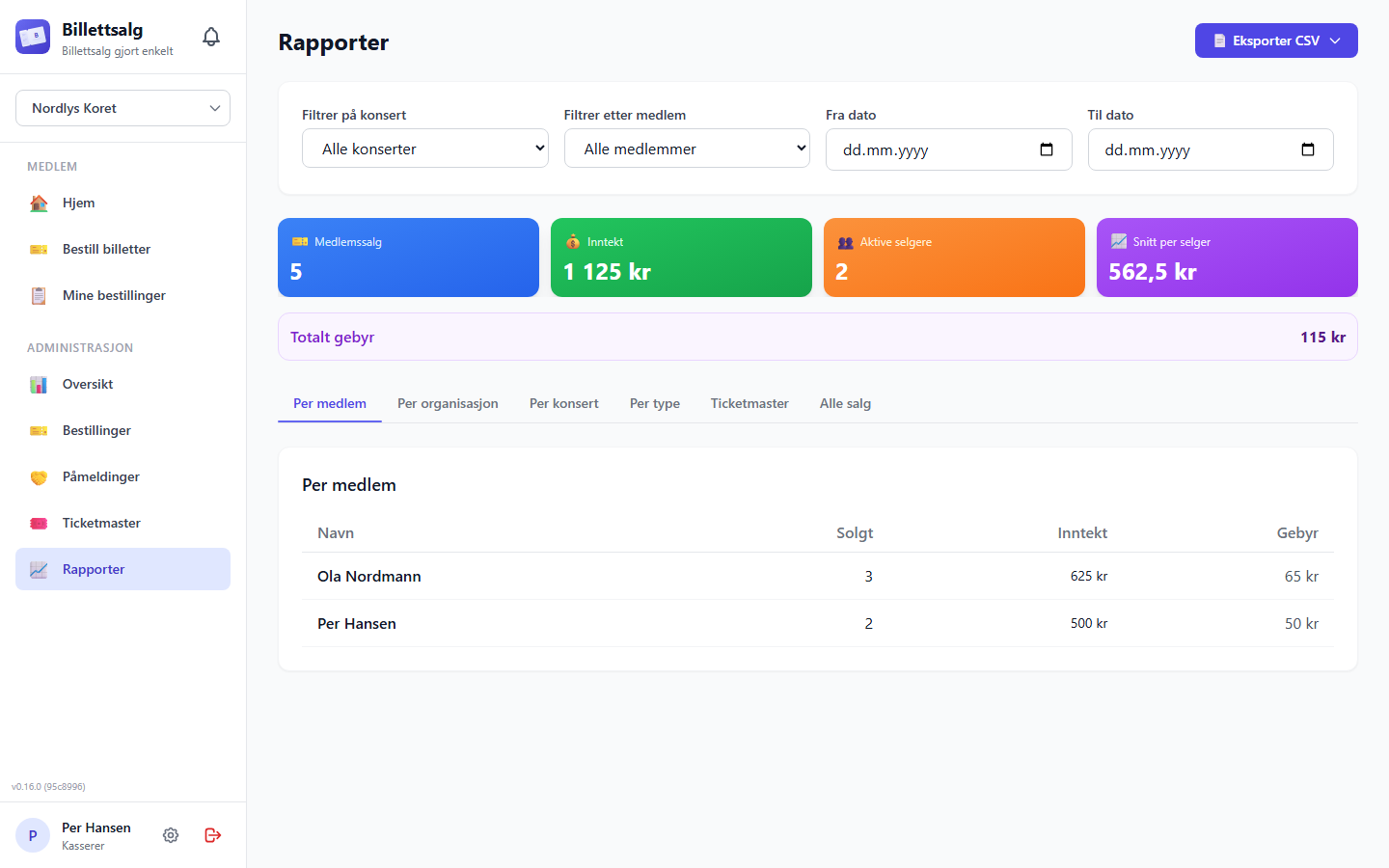
Navigate to Management → Reports in the sidebar. This is your main workspace.
Report Tabs
The reports page has six tabs, each offering a different view of your sales data. Tabs use lazy loading — data is only fetched when you click a tab, keeping the page fast even with large datasets.
| Tab | What it shows |
|---|---|
| By Member | All current members, with separate sold, ordered and handed-out quantities, revenue and fees |
| Organizations | Summary by organization (useful for multi-organization setups) |
| Events | Revenue breakdown per event, including external sales |
| Ticket Types | Sales and revenue grouped by ticket type |
| Ticketmaster | External sales from Ticketmaster by showtime |
| All Sales | Every individual sale with full details |
Free tickets by concert and type
In By Event, the Free Tickets count appears beside sales and revenue. Select a positive count to expand a read-only list of recipients, ticket types, quantities, performances and origins. Verified conversions are labelled separately from tickets originally issued as free tickets. An original-order link appears only when your role can open the verified local order.
By Type groups ticket types under each concert, with price, sold, free tickets and revenue. External sales stay in Ticketmaster, not an unused mapped-sales column. A free-only type without a recorded paid price shows Unavailable, not an invented price. Free tickets never add paid sales, revenue or fees.
These counts describe recorded free tickets, not whether tickets are currently valid for admission. They are separate from source-created sales transactions. With date or member filters, free-ticket counts and details are unavailable: issue dates differ from order dates, and independently issued free tickets have no member attribution. Clear those filters to view the counts. Event selection still scopes the list. Historical reports, summary cards and exports retain their existing behavior.
Complete member overview
By Member includes every current member of the selected organization, even with no orders or sales. An invitation alone is not membership. Existing Reports permissions are unchanged: Ticket Managers and ordinary members do not gain access.
The default order is Most sold, ranked by ticket quantity rather than revenue. You can sort by name, ordered quantity or handed-out quantity instead. Name ties follow the app language. A compact table appears on desktop; tablet and phone use cards with the name and sold quantity first. Choose Details for the number of orders, cancelled orders, tickets awaiting handout and unsold returns. Card details also contain revenue and fees.
- Ordered counts tickets, not orders. Multiple orders are combined once per member.
- Handed out is the recorded whole-order handout quantity, not tickets currently held. It is independent of sold quantity. A member with several orders can have both handed-out tickets and tickets awaiting handout.
- Awaiting handout means approved tickets still awaiting physical handout, not orders awaiting approval.
- Sold includes eligible registrations and reported printed-ticket sales. Unsold orders do not add sales income. Sold tickets remain sold and invoiceable; unsold returns do not reverse them.
- Unavailable is not zero. Known amount qualifies a financial subtotal when the full amount is not known. Revenue already includes known fees. Neither revenue nor fees confirms payment.
Search by name and use All, No orders, Awaiting handout, or Handed out, no reported sales. These filters can overlap. No orders means no orders in the selected scope, including cancelled orders. Counts reflect the event, member and date selection and name search, before the quick filter. Search and quick filters narrow the list, not the report summary.
Sales attributed to people outside the current member list remain in report totals and appear in a separate disclosure. It does not establish when someone left. Selling-partner organizations remain separate; the report does not expose their members. Historical and delegated reports keep their existing, separate behavior.
Ticket participation counts each current member once if they have ordered, received or sold tickets in the selected event/date scope, out of all current members, regardless of name search, quick filter or sort. It is not a sold-only percentage; an empty roster or uncertain participation makes the percentage unavailable, and the card is hidden when one member is selected.
Date filters select when source orders and registrations were created. The displayed figures are their current recorded quantities, not a timeline of sales or handouts. If the complete report cannot be loaded, the app shows an unavailable message rather than an incomplete roster.
Existing printed-ticket reconciliation adjustments and validated frozen or recovered invoice bases are supported. A separate, dormant format for immutable printed-order or registration correction chains cannot be created through the current correction endpoints. Only if unsupported evidence of that format has been introduced manually or by a future writer does the report become unavailable rather than showing uncorrected values. Existing supported reconciliation and recovery workflows are not made unavailable by this safeguard.
Report summary
At the top of the reports page, you'll see summary statistics that update based on your active filters:
- Member Sales — total tickets sold by members
- Externally Sold — tickets sold through external channels like Ticketmaster
- Total Revenue — combined revenue across all channels
- Total Fee — total fees collected
- Active Sellers — number of members who have sold at least one ticket
- Average per Seller: Average revenue per active selling member.
These give you a quick financial snapshot before diving into the detailed tables below.
In the complete member report, Known quantity or Known amount qualifies incomplete summary totals. If sold quantities or revenue are incomplete, the average is Unavailable rather than a misleading exact figure.
INFO
Event, member and date filters update the summary. Member search and quick filters change only the member list.
Filtering Reports
Narrow down the data with three filters that apply across all tabs:
- Event dropdown — show data for a specific event
- Member dropdown — show data for a specific member
- Date range — from / to date pickers
Filters update all tabs automatically. This is especially useful when preparing reports for a specific event or time period.
Preparing for a board meeting?
Set the date range to the period you're reporting on, then export each view you need. The filename includes a timestamp so you can keep track of versions.
Historical reports
Events explicitly marked as test data are excluded from ordinary Reports, reporting exports and dashboard totals. The selected dashboard, Shared Event reports and delegated sales summary refuse a marked selection instead of returning misleading zero totals. Shared Event operational capacity remains available, but its financial card summary is withheld.
Event History still includes marked events. Their explicit historical reports retain the original amounts and a test-data explanation. Archive status alone does not exclude genuine history. Owner organization Admins and scoped Super Admins can mark or undo through Event History; undo restores the ordinary reporting rules.
Open Management → Event History, select an eligible cancelled, archived, or deleted event, and choose View report. Historical mode reuses the normal report tabs but is read-only: it has no active-event selector, mutation actions, Report Sales entry point, or CSV/Excel export.
Historical access requires a current Treasurer-or-higher membership in the selected organization. Active events stay on the normal Reports route; inaccessible, stale, or fabricated history links return a generic unavailable state.
For a historical Shared Event, you see:
- Your organization's financial and activity details.
- Permitted event-wide capacity, ticket, allocation, and participant-count aggregates.
- Other participants combined into one anonymous activity total.
You never see another organization's identity, members, customers, individual orders, revenue, fees, allocations, external-sale records, or notes.
Exporting Data
Click the Export button to download a CSV file. You can choose from four export types:
| Export type | What's included |
|---|---|
| Transactions | Every individual sale with full details |
| Members | Current members and separately identified source-only sellers, with quantities, financial subtotals and availability |
| Showtimes | Breakdown per showtime — tickets, revenue, fees |
| Orders | All ticket orders with status, dates, and notes |
About the CSV Format
- Files are UTF-8 encoded with BOM for Excel compatibility — open them directly in Excel without encoding issues
- Member CSV column headers follow the app language; other export formats may retain Norwegian headers
- Filenames include a date stamp, e.g.
rapport-2025-06-15.csvorbestillinger-2025-06-15.csv - Semicolons and commas in data are handled safely
INFO
The member CSV uses the same event, member, date, name search, quick filter and sort as the member list, including its language-specific name ordering. It retains a separate partner-organization section when applicable. Other export types do not use the member-list search or quick filter.
Printed-order sales and financial figures are sold-only in both report tabs and CSV exports. Pending and approved orders can contribute ordered quantities but not sales income. Delivered and awaiting-reconciliation orders contribute only validated reported sold lines; settled orders use the valid frozen invoice basis. Returned and outstanding tickets never contribute revenue or fees, and incomplete detail never falls back to the original order total.
If an older printed order has a recorded ticket price but no reliable fee, the known ticket income still contributes to the subtotal. Other validated fees also remain included. The underlying financial data stays partial until all required details are known. The dashboard shows the known amount under Organization Income, without routine completeness badges. A validated frozen invoice basis can supply a missing historical fee; current ticket prices and fees cannot. A missing fee is not evidence of a zero fee.
Choose Show breakdown below Organization Income on a single-concert dashboard, in the all-concerts total, or on an individual concert card. It shows Registrations and printed tickets and Ticketmaster/external when the recorded channel amounts reconcile with the displayed total. The breakdown starts collapsed; search and sales-status filters also update its totals. Organization fees already included in those amounts are not added again. An unavailable channel shows Unavailable, not zero; any known companion income remains visible. If a safe split is unavailable, the breakdown control is omitted without changing the headline amount. Use the concert name or card to open its dashboard; expanding the breakdown does not navigate away.
Cancellation accounting reviews
Cancellation separates ticket validity from financial follow-up. Treasurers and Admins with the required access can look up cancelled tickets in Event History without recording a decision. History access does not grant permission to cancel an event. See the admin guide for cancellation steps and blockers.
- Supported uninvoiced orders and registrations receive separate, immutable offsets for ticket prices and organization ticket fees. Original sales and physical-ticket records remain unchanged; no physical return is invented.
- A locked but unissued invoice basis remains unchanged as historical evidence. Its offset is separate and automatic; no separate decision is required.
- Issued invoice amounts, bases and invoiced markers remain unchanged. Staff must review any credit or refund handling outside the app.
- Missing original prices or fees block cancellation. Unavailable does not mean zero; a known ticket-price amount is not proof of a known total. Invoice and custody warnings alone describe follow-up, not a blocking missing monetary basis.
Ticketmaster: Only external sales already recorded here for the selected scope receive a local invalid-for-use outcome and internal audit records. They receive no automatic monetary adjustment. External quantities, prices and fees remain historical facts. The app cannot discover unrecorded sales and does not call Ticketmaster, revoke its barcodes, synchronize its cancellation status, refund customers, issue credit notes or automatically reverse external income. Staff must contact Ticketmaster and handle external refunds and reconciliation separately.
In Event History, filter by Cancelled, open the event or performance and search Cancelled tickets by member or sales channel. The lookup includes ordinary cancelled orders and registrations, not just older review records. Expand Technical details to copy full source, cancellation and any saved review or adjustment references. These are technical references, not order numbers. The former review route redirects to cancelled history. There is no separate decision queue or bookkeeping action in this lookup; any saved accounting-review evidence remains historical.
Selling-partner reports
When you select an event delegated to your organization, Reports reuses the familiar member-oriented layout with a stricter data source:
- It includes only orders held by your organization under the current active delegation.
- It names only current approved members of your organization. If membership no longer proves a person, the row is unattributed while its quantities and money remain included.
- It excludes owner-direct sales, other partners, external sales, owner capacity, contact details, notes, invoice state, Cosmos metadata, and organizer controls.
- It shows the gross revenue your organization collected from buyers, based on order-time prices. Cancelled orders contribute no sold, returned, outstanding, or revenue totals.
- CSV and Excel exports are unavailable for delegated events in this release because the existing export routes are owner-scoped.
Gross collected revenue is not the amount your organization keeps. Billettsalg does not yet store contracted compensation, calculate owner-to-partner settlement, produce a net partner invoice, or track whether a settlement was paid.
Member Sales Detail
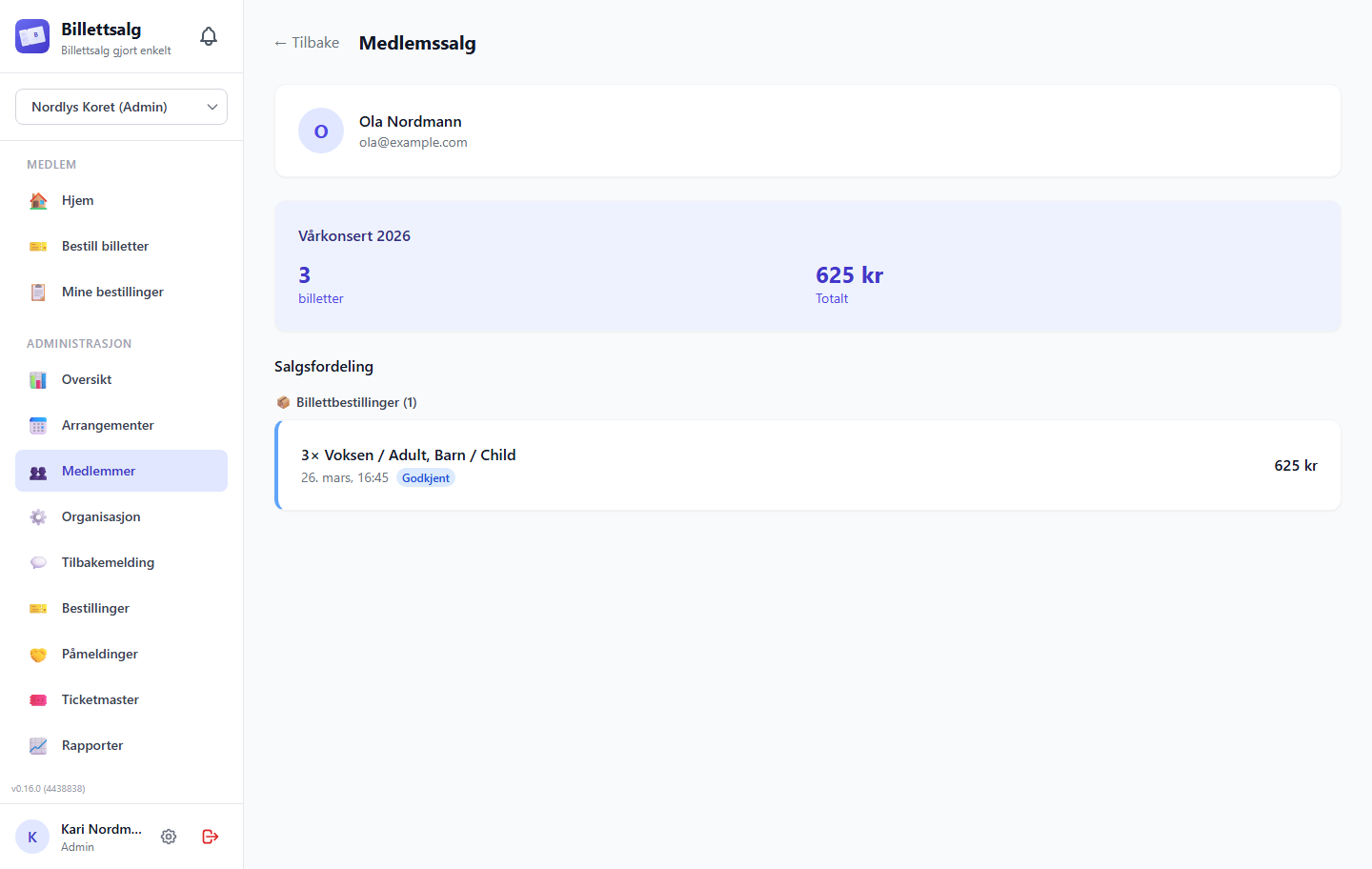
Open a selected concert's dashboard and its Sales tab to see individual member sales details. The Details disclosure in Reports is a read-only aggregate, not an invoice action.
- Total tickets sold and total revenue
- Each registration with ticket type, quantity, unit price, and date
- Invoice summary: waiting for settlement, invalid basis, ready, partial, or invoiced
Issuing member invoices
When a member's printed orders are settled and ready for invoicing:
- Go to the selected concert's dashboard and open the Sales tab.
- Open the member's sales detail.
- Review the invoice amount and any unresolved or invalid printed orders.
- Select Mark as Invoiced to record that the invoice was issued or sent.
- Confirm the action.
One member-and-event action covers active direct registrations and eligible settled printed orders. The invoice amount includes only sold printed tickets at order-time prices. Returned tickets and unresolved orders do not contribute. If all eligible records are already invoiced, selecting the action again clears their invoice state even while separate unresolved or invalid-order warnings remain.
If a transferred order has a repairable reconciliation mismatch, the order action sheet identifies it. A direct organization Admin must apply the audited pre-settlement correction or, for eligible settled invalid bases, the separate settled-basis recovery. Treasurers cannot perform these corrections. A verified recovered basis can contribute to the member invoice amount without overwriting the original frozen basis.
INFO
Invoiced does not mean paid or reconciled. It records only that the invoice was issued or sent. Clearing invoice state from an archived settled order requires you to unarchive it first.
End-of-event workflow
After a concert series wraps up: finish sales and returns → approve reconciliation → issue invoices outside the app → record issuance → export a final summary for the board.
Recording externally issued invoices for several members
Available in v1.9.0
The workflow below implements #537. The existing individual member action above remains separate.
- Open one event in Dashboard → Sales → Sales by Member in the owning organization. The action is not available in the all-events view or selling-partner projection.
- Select the checkboxes beside members in the existing sales table (member cards on mobile), not individual orders. The scope includes every performance of the selected event. Ticket counts, sales revenue and invoice status stay together with the selection.
- Select Review selected to reload the authoritative amounts. For each member, check the eligible total, previously marked record count, amount and record count to mark now, and warnings for unsettled orders, invalid or recovery-required bases, and invalid registrations.
- Confirm the checkbox only after the invoices for the eligible amounts shown have been issued outside the app.
- Select Confirm invoices issued. Read each member's result and counts for completed, already marked, changed and unconfirmed records. Close to refresh.
Ready for invoicing is separate from sales revenue: unsettled sales can contribute revenue without being ready to invoice. If some eligible records are already marked, the table directs you to the review for the remaining amount rather than presenting the full eligible total as pending. Short row hints explain exclusions or why selection is unavailable; the review shows the full warnings and updated amounts.
Eligible sources are active direct registrations with consistent amounts and settled printed-ticket orders with validated frozen or recovered bases. Returned tickets never enter printed-order amounts. Eligible sources can be marked even when other sources for the same member are excluded with warnings. This means the member's full balance may not be ready. A completed result covers eligible sources only, not the excluded siblings.
This is a one-way issuance mark. It never clears an existing mark, creates or sends invoices, records payment, settles orders, or merges events or orders. Test-data events are not eligible. Members with no remaining eligible sources cannot be selected.
Updates can succeed for some members or source records and not others. Already completed is a safe no-op; Partly completed preserves successful marks. Changed records need another review. If completion cannot be confirmed, do not assume nothing was saved. There are no automatic retries: close, refresh and review what remains before confirming again. Already issued sources retain their original marking. Switching organization or event clears the selection and review.
For the separate #538 order approval workflow, see Approving several reconciliations.
Ticketmaster Reports
The Ticketmaster tab gives you a dedicated view of all external sales:
- Sales broken down by showtime
- Adult and child ticket quantities
- Revenue per showtime from external channels
This is useful for reconciling Ticketmaster statements with your internal records.
What You Inherit from Ticket Manager
As a Treasurer, you have full access to all Ticket Manager features:
- Orders — approve, reject, deliver, transfer, and archive ticket orders
- Allocations — set and manage per-member ticket limits
- External Sales — log and track Ticketmaster or box office sales
- Capacity — monitor venue capacity across all sales channels
See the Ticket Manager Guide for detailed instructions on these features.
Tips for Treasurers
Regular export schedule
Export reports at regular intervals — after each event and at month-end — so you always have a backup of your financial data outside the app.
Reconciliation
Use the Members export alongside the Ticketmaster tab to reconcile total revenue across all channels. The summary cards at the top give you the quick numbers, and the exports give you the detail.
Need Help?
- Need more access? Ask your Admin to upgrade your role from the Members page
- Report looks wrong? Check your filters — an active event or date range filter may be hiding data
- Technical issues? Contact your system administrator