Getting Started
Welcome to Billettsalg — ticket sales made easy. This page will help you get oriented, no matter what role you have.
🌐 App URL
Access the app at billettsalg.vikingapps.dev
What is Billettsalg?
Billettsalg is a web app that helps organizations manage concert ticket sales from start to finish. Members request tickets, admins approve and distribute them, and treasurers track the money — all in one place.
Key features:
- Ticket ordering & approval — Members order tickets, admins review and hand them out
- Walk-up / direct sales — Admins can register sales on the spot
- Multi-organization support — One system for multiple organizations, each with their own events and members
- Capacity tracking — See how many tickets are left for every showtime in real time
- Reporting & export — Financial reports with Excel and CSV export
- Registration rounds — Gauge member interest before allocating tickets
Roles Overview
Your organization admin assigns you a role. Each role builds on the one below it, so an Admin can do everything a Treasurer can, and so on.
| Role | What you can do |
|---|---|
| Member | Order tickets, register your own sales, view your order history |
| Ticket Manager | Everything a Member can + approve/reject orders, manage allocations, record external sales |
| Treasurer | Everything a Ticket Manager can + view financial reports and export data |
| Admin | Everything a Treasurer can + create events, manage members, control the dashboard |
| Super Admin | Everything an Admin can + manage all organizations, all users, and impersonate accounts |
Not sure what role you have?
Check with your organization admin. They can see and change your role from the Members page.
First Login
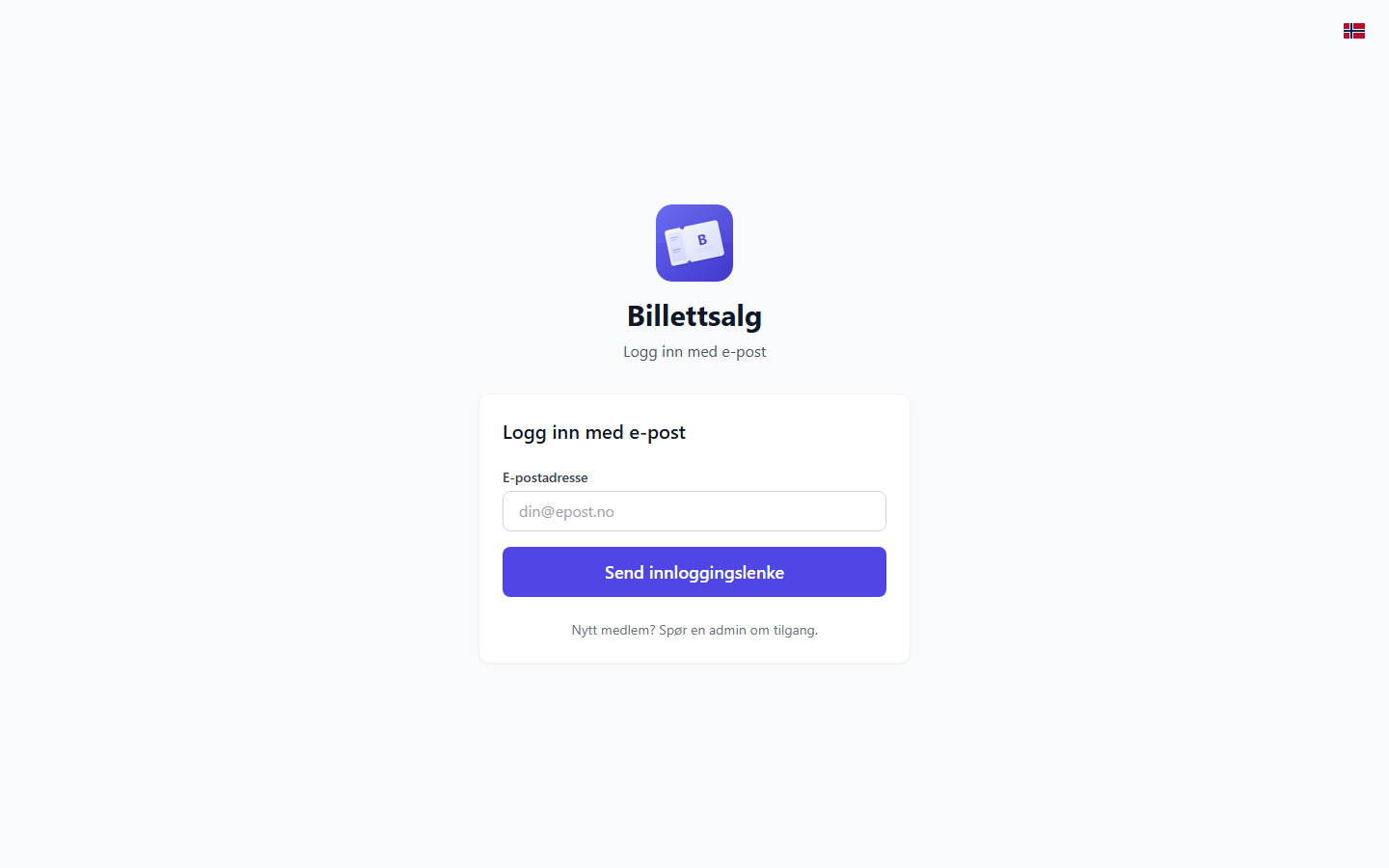
Billettsalg uses magic links — no passwords to remember.
- Go to the login page and enter your email address
- Check your inbox — you'll receive an email with a login link and a 6-digit code
- Click the link or enter the code on the verification page
- You're in! The link expires after 30 minutes, so use the newest email promptly
First time?
If you haven't been added to an organization yet, ask your admin for an invitation link. Click the link, enter your name and email, and you'll be joined to the organization automatically.
Choosing Your Guide
Pick the guide that matches your role:
| Guide | Who it's for | What's covered |
|---|---|---|
| Member Guide | All members | Ordering tickets, registering sales, viewing your order history |
| Ticket Manager Guide | Members who manage ticket distribution | Approving orders, allocations, external sales |
| Treasurer Guide | Treasurers and financial officers | Financial reports, CSV exports, invoicing |
| Admin Guide | Organization leaders and organisers | Events, members, dashboard, direct sales, reports |
| Super Admin Guide | System administrators | Organization management, user management, impersonation |
TIP
Start with the guide for your role. Since each role inherits the capabilities of the roles below it, you may also want to skim the guides for lower roles.
App Features
Sidebar Navigation
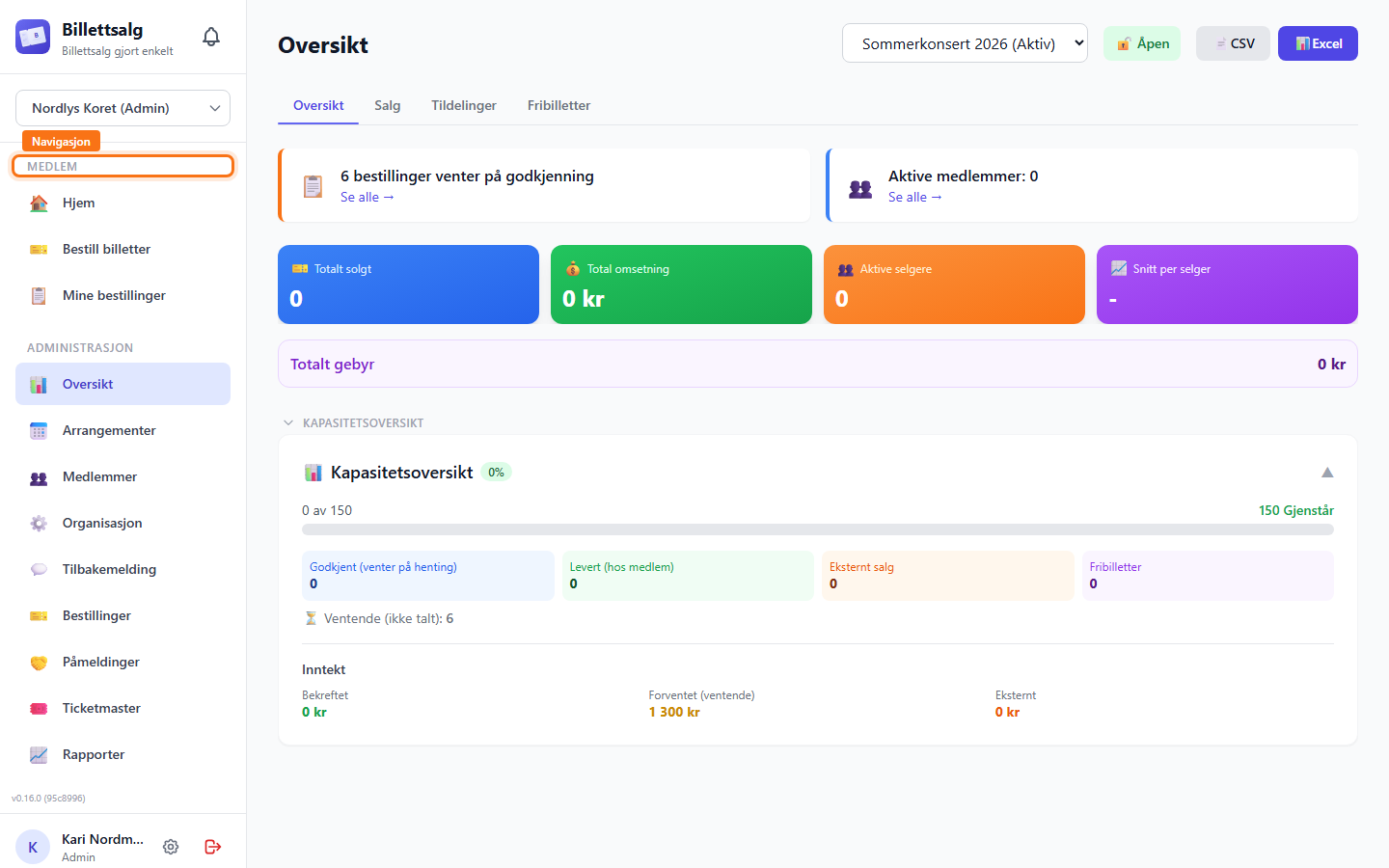
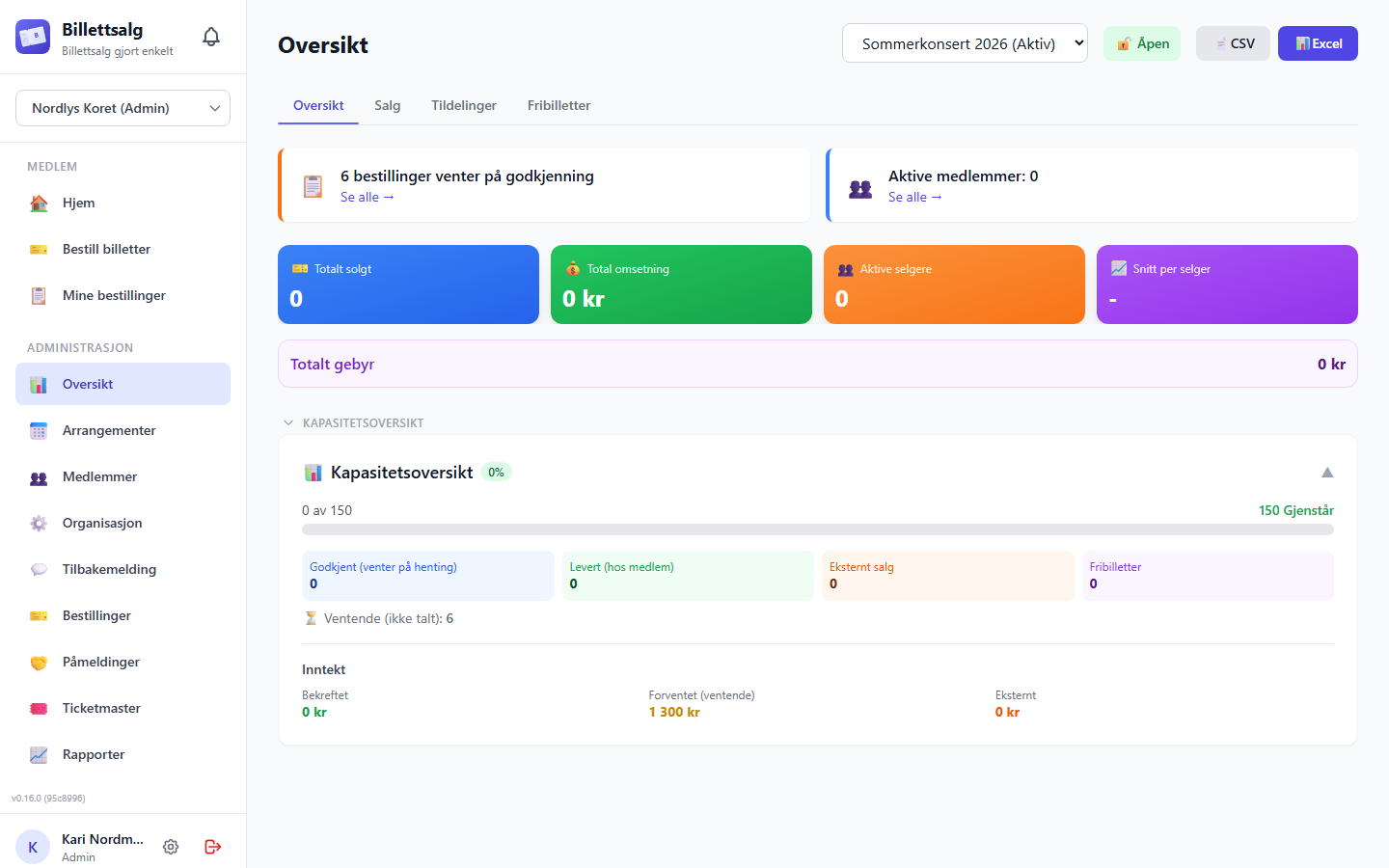
The sidebar is organised into three sections, filtered by your role:
| Section | Items | Who sees it |
|---|---|---|
| 👤 Member | Home, Order Tickets, My Orders | Everyone |
| 📊 Management | Dashboard, Events, Members, Orders, Registrations, Allocations, Ticketmaster, Reports | Ticket Managers, Treasurers, and Admins (items filtered by role) |
| 🎼 Super Admin | Organizations, All Users | Super Admins only |
You'll only see the sections and items that match your role. For example, a regular member sees only the Member section, while an Admin sees both Member and Management.
When you have tickets in your cart, a 🛒 Cart item with a count badge automatically appears in the sidebar. On mobile, a cart shortcut with badge also appears in the top navigation bar.
Dark and Light Mode
Switch between dark and light themes — or let the app follow your device settings. You'll find the toggle in the top navigation bar. Choose Light, Dark, or System.
Language
Billettsalg is available in English and Norwegian. Switch languages from the navigation bar at any time — all labels, buttons, and messages update instantly.
Install as an App
Billettsalg is a Progressive Web App. You can install it on your phone or computer for quick access:
- On your phone: Open the app in your browser and tap "Add to Home Screen" (or the install prompt)
- On desktop: Look for the install icon in your browser's address bar
Once installed, it works like a native app — with its own icon and full-screen experience.
Automatic updates
The app checks for updates automatically. When a new version is available, you'll see a "New version available" notification — just tap Update to refresh.
📱 Using the installed app on iPhone?
If you install the app on your iPhone or iPad, magic links from emails will open in Safari — not in the installed app. Use the 6-digit code from the login email instead. Just type it into the installed app's login screen.
First-Time Login — Onboarding Tour
When you log in for the first time, you'll see a short welcome tour that walks you through the basics. The tour has 4 slides covering:
- Welcome — Overview of what Billettsalg does
- Ordering — How to browse events and order tickets
- Tracking — How to check your order status
- Getting Help — Where to find support
You can skip the tour at any time — no worries, you won't miss anything critical. To see it again later, clear your browser's local storage.
Notifications 🔔
The notification bell in the top navigation shows important updates about your orders and account:
| Notification | When it appears |
|---|---|
| Order Approved | Your ticket order has been approved by a manager |
| Order Delivered | Your tickets are ready for pickup |
| Order Cancelled | Your order was cancelled (with reason) |
| Order Submitted | Confirmation that your order was received |
| Order Transferred | An order has been transferred to you (or away from you) |
| Allocation Assigned | A ticket sales quota has been set for you |
| Member Joined | A new member joined your organization |
| Sales Locked | Ticket sales for an event have been paused |
| Sales Unlocked | Ticket sales have reopened |
| Role Changed | Your role in the organization has been updated |
Unread notifications show a red badge with the count. Click the bell to see all notifications and mark them as read.
Switching Between Organizations
If you're a member of more than one organization, you'll see an organization selector dropdown near the top of the sidebar. Select the organization you want to work with — all pages will update to show data for that organization.
TIP
Your selected organization is remembered between sessions, so you won't need to pick it every time.