
Ticket Manager Guide
Screenshots
Screenshots show demo data from a test environment.
As a ticket manager, you're the bridge between members and their concert tickets. This guide covers everything you need to manage orders, sales quotas, and external sales effectively.
Your Role
What Ticket Managers Do
You handle the day-to-day ticket operations for your organization:
- Review and approve member ticket orders
- Mark orders as delivered when handing out physical tickets
- Transfer orders between members when needed
- Archive completed orders for a selected event
- Set sales quotas to control how many tickets each member can order
- Log external sales from platforms like Ticketmaster
- Track capacity across all sales channels
- Sell for another organization if your organization has been invited as a selling partner on one of its events
What You Can and Can't Access
| You can do | You can't do |
|---|---|
| Manage orders (approve, reject, deliver) | Create or edit events |
| Set sales quotas | Manage members |
| Log external sales (Ticketmaster) | Change member roles |
| Use the event dashboard and invoice summaries | View financial reports |
| View capacity per showtime | Access organization settings |
| Order tickets (like any member) | |
| Access Registrations directly from sidebar | |
| Archive and restore eligible orders |
INFO
Need access to reports or event management? Talk to your organization admin about upgrading your role.
Working in a limited selling-partner organization
A limited organization keeps the familiar Overview and Orders workspaces plus Delegated Events. Treasurers and Admins also keep Reports, and Admins keep Members and Organization Settings. Owner-only Events, registration rounds, external-sales management, and Shared Events entry points are hidden.
Managing Orders
The Orders screen is your main workspace. Navigate to it from the Management section in the sidebar.
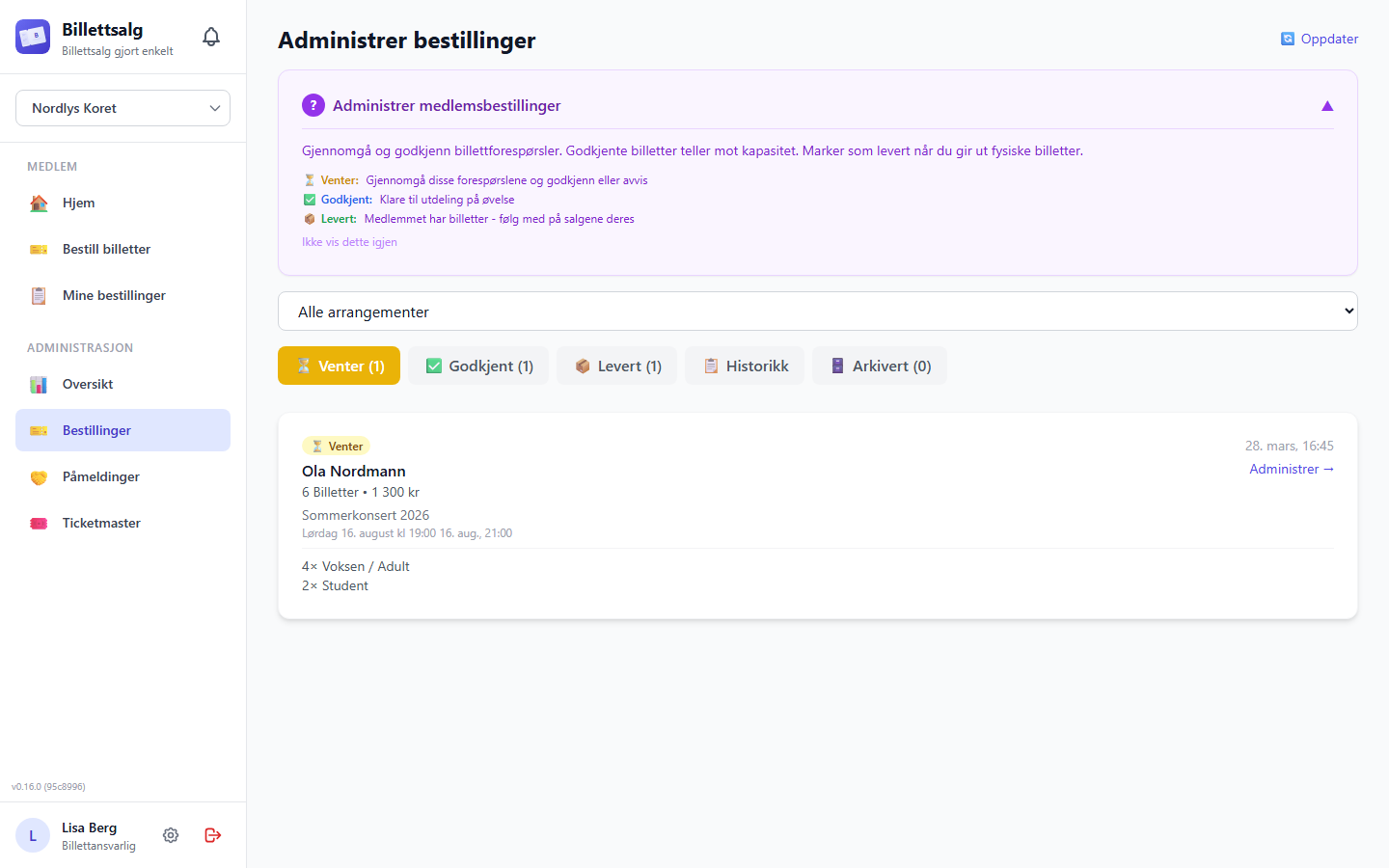
The Orders Screen
At the top you'll find:
- Event filter — a dropdown to filter orders by event. If there's a single active event, it's selected automatically.
- Member-name search: filters the current Pending, Approved, Delivered, or Awaiting Reconciliation queue. It matches part of a member's name, ignores capitalization and surrounding spaces, and works together with the event filter.
- Refresh button (🔄) — tap to reload the latest orders.
Below that are seven tabs, each with a count badge:
| Tab | Icon | What's here |
|---|---|---|
| Pending | ⏳ | New orders waiting for your review |
| Approved | ✅ | Orders you've approved, awaiting ticket pickup |
| Delivered | 📦 | Orders where tickets have been handed over and sales or returns are still being reported |
| Awaiting Reconciliation | 📋 | Orders where every ticket is accounted for and a manager must approve the reconciliation |
| Settled | ✔️ | Reconciliations you approved, with the invoice basis frozen |
| Cancelled | ❌ | Orders cancelled by a member or manager |
| Archived | 🗄️ | Completed orders a ticket manager or higher role archived to keep operational queues tidy |
Each order card shows the member's name, order date, showtime, ticket breakdown, total amount, and a status badge. Tab counts always show the full status total, even when member-name search narrows the visible list.
The active Orders workspace contains current-event operations. Open Management → Event History for cancelled, archived, or deleted events. Hidden events and events with locked sales remain current. Historical detail is read-only for Ticket Managers; event restore requires an eligible direct Admin.
Events explicitly marked as test data stay out of every Orders tab, including Archived, event choices and summaries. There is no Show test data toggle. An authorized administrator can remove the marking through Event History; then refresh Orders. Ordinary archived orders are not test data just because they are archived. In Settled, the list, count, sold-ticket total and recorded revenue share the selected-event, non-archived scope. An event with no matching settled orders shows zero totals.
Reviewing a Pending Order
- Go to the Pending tab.
- Start with the first card. Pending orders always appear oldest first, and each card shows the localized Submitted date and time. Orders submitted at the same instant keep a stable order across refreshes.
- If needed, search by member name or select an event. The filtered Pending results stay oldest first.
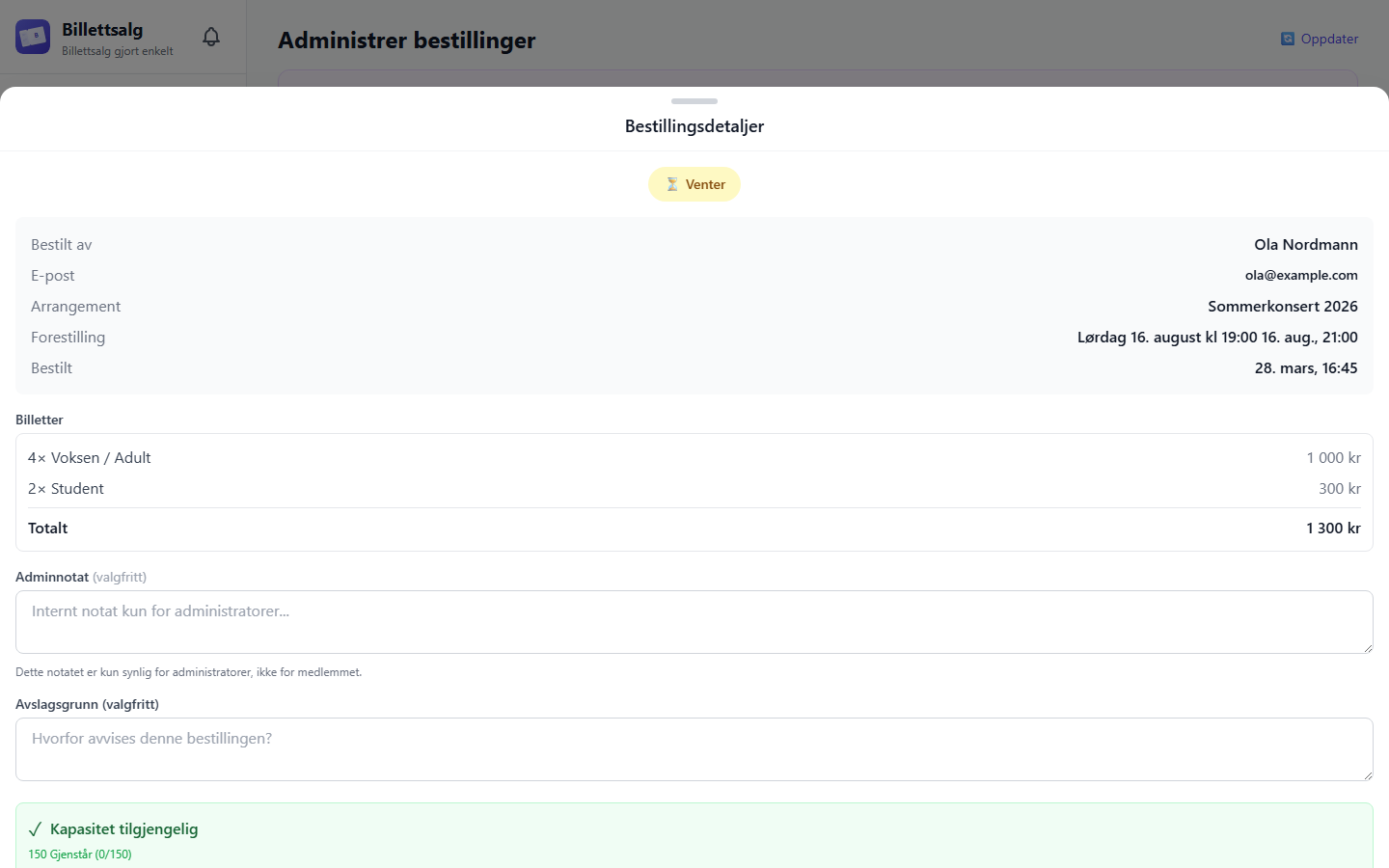
- Select Manage on the order card to open the action sheet. You can also focus the button with the keyboard and press Enter. Closing the sheet returns focus to that button.
- You'll see the full order details plus a capacity summary:
- Venue capacity
- Total tickets sold
- Remaining capacity
- Pending orders count
This helps you decide whether to approve — if venue capacity is tight, you'll see a warning.
Approving an Order
- Open a pending order's action sheet.
- Optionally add an Admin Note (e.g. "Pick up at Thursday rehearsal").
- Tap Approve.
- Confirm when prompted.
- The order moves to the Approved tab. Approval reserves the order operationally, but capacity changes only when sold tickets are reported.
Capacity check
If the full order is larger than the currently remaining capacity, you'll see a warning: "This order would exceed venue capacity by X tickets." Treat this as planning guidance. Approval itself does not consume capacity, but later reported sales do.
Rejecting / Cancelling an Order
- Open the order's action sheet.
- Enter a Rejection Reason — this is visible to the member when an order is rejected by an admin.
- Tap Cancel.
- Confirm when prompted.
- The order moves to the Cancelled status. Cancelled orders don't affect capacity.
The system attempts to deliver one in-app notification linked to the order history with best-effort creation and bounded retries. The notification names the event but does not copy the staff-entered rejection reason, admin notes, or internal identifiers. Retried decline requests reuse the same transition key, so they don't create duplicate notifications. Cancellation succeeds even if notification creation ultimately fails.
Cancellation vs Rejection
When a member cancels their own order, they see a "Cancel Reason" field. When an admin rejects an order, the member sees the "Rejection Reason" you enter here. Both result in a cancelled order, but the language distinguishes who initiated it.
Marking Orders as Delivered
When you hand physical tickets to a member (usually at rehearsal):
- Go to the Approved tab.
- Open the order's action sheet.
- Optionally add an admin note.
- Tap Deliver.
- Confirm when prompted.
- The order moves to the Delivered tab.
Delivery workflow
A typical flow: approve orders during the week → print ticket lists → hand out tickets at rehearsal and mark each order as Delivered.
Sold tickets awaiting physical handout
Use the Sold - not handed out filter above the existing order list to find affected orders across all statuses. It keeps the order's real status visible and continues to respect the event filter and member search. Orders with unavailable handout data are included for review and are never treated as zero.
Open the order and choose Mark as handed out to review and confirm the entire remaining order. Partial handout is not available. Handout does not change reported sales, used capacity, or the same seller's invoice liability. There is no refund, sale reversal, or payment action here.
While sales are open, the full order can include approved tickets that have not been reported sold. After sales close, the full handout is blocked if any remaining ticket is unsold; report all remaining tickets sold first. The server checks the current sales window and quantities again when you confirm.
Authorized Ticket Managers, Treasurers, Admins and Super Admins can service already-recorded sales after sales close or the performance starts. This does not reopen selling. Selling partners still need a current delegation and handout authority. If authority is revoked or the record changed, refresh and ask an authorized manager to handle it.
For example: if an order has four tickets and all four are reported sold, hand out all four. The result is still four sold, four physically handed out, four sold and handed out, and no sold tickets awaiting handout. The seller remains liable for four. If an order has ten tickets but only four are reported sold after sales close, full handout is blocked until all remaining tickets are reported sold. If saving cannot be confirmed, retry the same submission rather than making a second handout request.
Turning off new pre-handout sales does not hide existing obligations or disable their servicing. New pre-handout reporting is disabled by default. It requires separate server activation; a browser setting does not grant access.
The member overview has a distinct Sold - not handed out filter and count. This does not replace the broader Awaiting handout filter or the participation measure. Reports and exports keep sold, physically handed out, sold awaiting handout and returned quantities separate; unavailable quantities are not exported as zero.
Reviewing and approving reconciliation
Members report sold tickets from their own delivered orders and return unsold tickets after the relevant showtime or event has passed. You can record a return on a member's behalf. Reporting sales on behalf of a member requires an Admin or Super Admin.
An order with sold tickets still awaiting physical handout cannot be reconciled, even if all tickets are reported sold. Its detail shows the exact outstanding quantity; the server also enforces this rule for individual and bulk reconciliation. Invoicing is separate from payment.
When sold plus returned equals the original order quantity:
- Open the Awaiting Reconciliation tab.
- Open the order and verify the sold, returned, and outstanding totals. Outstanding must be zero.
- Review the sold, returned, and invoice-basis information. The basis uses only sold quantities and the prices saved with the order.
- Select Approve reconciliation.
- Confirm the action.
Approval changes the order to Settled, records who approved it, and freezes the invoice basis. A fully returned order freezes a valid zero-value basis. A partial sale must have complete, consistent per-ticket-type sales detail; otherwise approval stops with a clear correction message. The original order total is never used as a fallback. Approval does not issue or send an invoice. The member sees the settled order under Current orders while the event remains current. Cancelled contains only cancelled orders for current events; if the event is cancelled, archived, or deleted, the settled activity appears in Event History.
If a transferred order shows a repairable reconciliation mismatch, review the warning and contact a direct organization Admin. Ticket Managers and Treasurers cannot apply the audited pre-settlement correction or the separate settled-basis recovery. Bulk approval does not bypass either workflow.
Approving several reconciliations
Available in v1.9.0
The workflow below implements #538.
- Open Orders → Awaiting Reconciliation and select exactly one event.
- In Approve selected orders, select the separate orders you want to review. Orders with known reconciliation issues still need individual review.
- Select Review selected. Check each member, performance, order reference, sold and returned quantities, sold-only amount and any blockers.
- Select Confirm approval to approve the eligible reviewed orders.
- Read each result, then close to refresh the list.
Each completed order independently becomes Settled and freezes its own validated sold-only invoice basis, with the existing approver and time evidence. Returns never enter the amount. This does not merge orders, automatically approve other orders, issue invoices, change invoice state or record payment. Test-data events are not eligible.
Already completed means no change was needed. Changed since review requires a fresh review. An ineligible row needs individual attention; an unconfirmed result is not proof that nothing was saved. There are no automatic retries. Close, refresh and review remaining rows before selecting them again. Completed orders are not applied twice. Changing organization or event clears the selection and review.
Issuing member invoices
From the dashboard or member sales detail, use the member-and-event invoice action after printed orders are settled. One action covers active direct registrations and eligible settled printed orders for that member and event. The displayed amount includes direct registration totals and valid sold-only printed invoice bases.
The invoice summary distinguishes orders still waiting for settlement, invalid legacy bases that need correction, records ready to invoice, partial invoice state, and fully invoiced state. Invoiced means the invoice was issued or sent. It does not mean payment was received.
The app records issuance; it does not create or send invoices. For the #537 workflow that selects several members in the sales table for one event across all performances, see Recording externally issued invoices for several members. Choose Review selected to check pending amounts separately from sales revenue before confirming external issuance. It only marks eligible sources and never clears existing invoice marks.
Transferring Orders
Need to move tickets to a different member? Maybe someone can't make the show and wants to pass their tickets along, or two members want to swap.
When transfers work:
Transfers are available for orders in the Approved or Delivered status, and they move only the order's outstanding tickets — the ones nobody has reported as sold or returned yet. Reporting some sales on an order no longer blocks transferring it; it just narrows what's left to move. A transfer is only blocked once nothing is outstanding anymore (every ticket on the order has already been sold or returned).
The transfer flow:
- Open the order's action sheet from the Approved or Delivered tab.
- Tap Transfer.
- Choose the transfer type:
- Transfer entire order — Only available while the whole order is still outstanding (nothing sold or returned yet). The order is reassigned in place to the recipient, with the same status and quantities.
- Transfer some tickets — Split off some outstanding tickets into a new order for the recipient; the rest (including anything already sold or returned) stays with the current owner. This is the only option once any sales or returns have been reported on the order.
- Set quantities per ticket type — Use the + / − buttons to select how many of each type to transfer, up to what's still outstanding for that type (not the original ordered quantity). If some tickets on the order are already sold or returned, a notice explains how many outstanding tickets remain and can move.
- Search for the recipient — Type at least 2 characters of a member's name or email. Tap the member to select them.
- Optionally add a reason for the transfer (e.g., "Member requested", "Swap for different showtime").
- Review the preview one more time, then tap Transfer {n} tickets.
The submit button stays disabled until you've selected at least one outstanding ticket and a recipient.
What happens after the transfer:
- Full transfer — The original order is completely reassigned in place: same order, same status, same quantities, now owned by the recipient. The recipient sees it in their own History view under the matching tab (Active or Delivered), with a 🔄 Transferred to you badge and the full transfer history.
- Partial (outstanding) transfer — Two orders result:
- The original order stays with the original member, now showing only the remaining tickets. Anything already sold or returned on it is untouched — that evidence never moves. If the transfer clears the last outstanding tickets on a Delivered order, that order moves straight to Awaiting Reconciliation, exactly as if the last tickets had been reported sold or returned instead of transferred.
- A new order appears for the recipient with the transferred quantity, marked Received via transfer, starting with nothing sold or returned yet, and carrying the transfer history.
Both orders remain in normal operational queues — no special archiving. The transfer history is visible to managers on both orders via the Order History link.
Transfer history
Every order includes a History link showing all transfers affecting that order. Click it to see a timeline of when tickets moved between members, who performed the transfer, and any reason recorded. If an order originated from a selling partner's delegated sale before it was transferred to your organization, the history preserves that as an audit note — it never grants the partner any ongoing access to the order.
Transfers and reconciliation
A transfer only ever moves outstanding (unreported) tickets — sold and returned quantities, and their per-ticket-type evidence, always stay on the order they were reported against. A transfer is blocked only once an order has zero outstanding tickets left (everything on it has already been sold or returned); as long as any outstanding balance remains, it can still be transferred, in full or in part.
Transfer examples:
| Scenario | Result |
|---|---|
| Transfer all 2 "Adult" tickets from Alice to Bob (nothing reported yet) | Bob receives the same order, reassigned in place, still "Approved", marked "Received via transfer". |
| Alice's order has 1 "Adult" ticket already sold; transfer the remaining 1 "Adult" + 1 "Child" to Bob | Alice's order keeps its sold ticket and moves to Awaiting Reconciliation (nothing outstanding left on it). Bob receives a new "Delivered" order with 1 Adult + 1 Child, marked "Received via transfer", starting with 0 sold and 0 returned. |
| Try to transfer an order with zero outstanding tickets left | Transfer is blocked. Alice sees the error: "This order has no outstanding tickets left to transfer — every ticket has already been sold or returned." |
| Try to transfer more tickets of a type than are outstanding for it | Rejected. Alice sees an error naming how many of that type are still outstanding. |
Adding Admin Notes
You can add or update notes on any order:
- Open the order's action sheet.
- Type in the Admin Note field.
- The note is saved when you take an action (approve, deliver, etc.).
Admin notes are internal — they help you and other managers track context about an order.
Archiving Orders
Ticket managers and higher roles can archive completed orders. A cancelled order is eligible when it is not deleted or already archived. A settled owner-member order also needs a valid frozen invoice basis and an issued invoice. A partner-sold settled order has no member-invoice prerequisite and can archive when its frozen basis is valid.
To archive completed orders in bulk:
- Select one specific event in the event filter.
- Select Archive completed orders.
- Review the preview. It shows the exact eligible total, the breakdown of settled and cancelled orders, and counts blocked by missing invoice state or an invalid invoice basis.
- Confirm the archive action.
Each server request archives at most 100 orders. The screen runs up to 10 requests, so one action can archive at most 1,000 orders. Execution requests are not automatically retried. If more eligible orders remain, the result tells you how many are left. Run the action again to continue.
The selected organization is fixed when the action starts. If you switch organizations during preview, confirmation, or processing, the action stops before another batch is sent. After any execution attempt, the order list reloads. If a server failure happens after some orders were archived, the message reports the durable processed, conflict, and skipped counts; the remaining count can be shown as unknown if it could not be read safely.
You can also archive one eligible order from its action sheet. Individual archive uses the same normal rules as bulk archive. Ticket Managers and Treasurers cannot bypass an invoice or basis blocker. Ask an organization admin to review the order.
An archived order shows a neutral 🗄️ Archived badge on the card and in the action sheet. Archiving is presentation-only. It keeps the order's lifecycle status, ticket sales and returns, reconciliation, financial records, and other order history unchanged.
You can restore an order from the Archived tab. Restoring removes the archive audit fields, and the underlying lifecycle status determines which tab and status badge the order returns to.
Ticket Sales Quotas
What Are Sales Quotas?
Sales quotas let you limit how many tickets each member can order for a specific event. They're an opt-in feature — you enable them per event when you want fair distribution among members.
Example: Your spring concert has 200 seats. You want each of your 20 members to sell a maximum of 10 tickets each. Enable quotas on the event, then set each member's quota to 10.
When a member has a sales quota:
- They see their remaining quota on the order form.
- They can't order more than their allocated amount.
- If they have no quota set, they can order freely (no limit).
Enabling Sales Quotas on an Event
Sales quotas are per event and opt-in. An admin must enable them before you can manage quotas:
- Go to Management → Events and open the event you want to manage.
- In the event settings, toggle "Enable sales quotas" on.
- Click Save.
- Back on the event dashboard, a "Manage Quotas" button now appears.
TIP
If you don't see the "Manage Quotas" button, check that the event has "Enable sales quotas" turned on in its settings.
The Quotas Management Screen
Click "Manage Quotas" from the event dashboard to open the quotas view, filtered to that event.
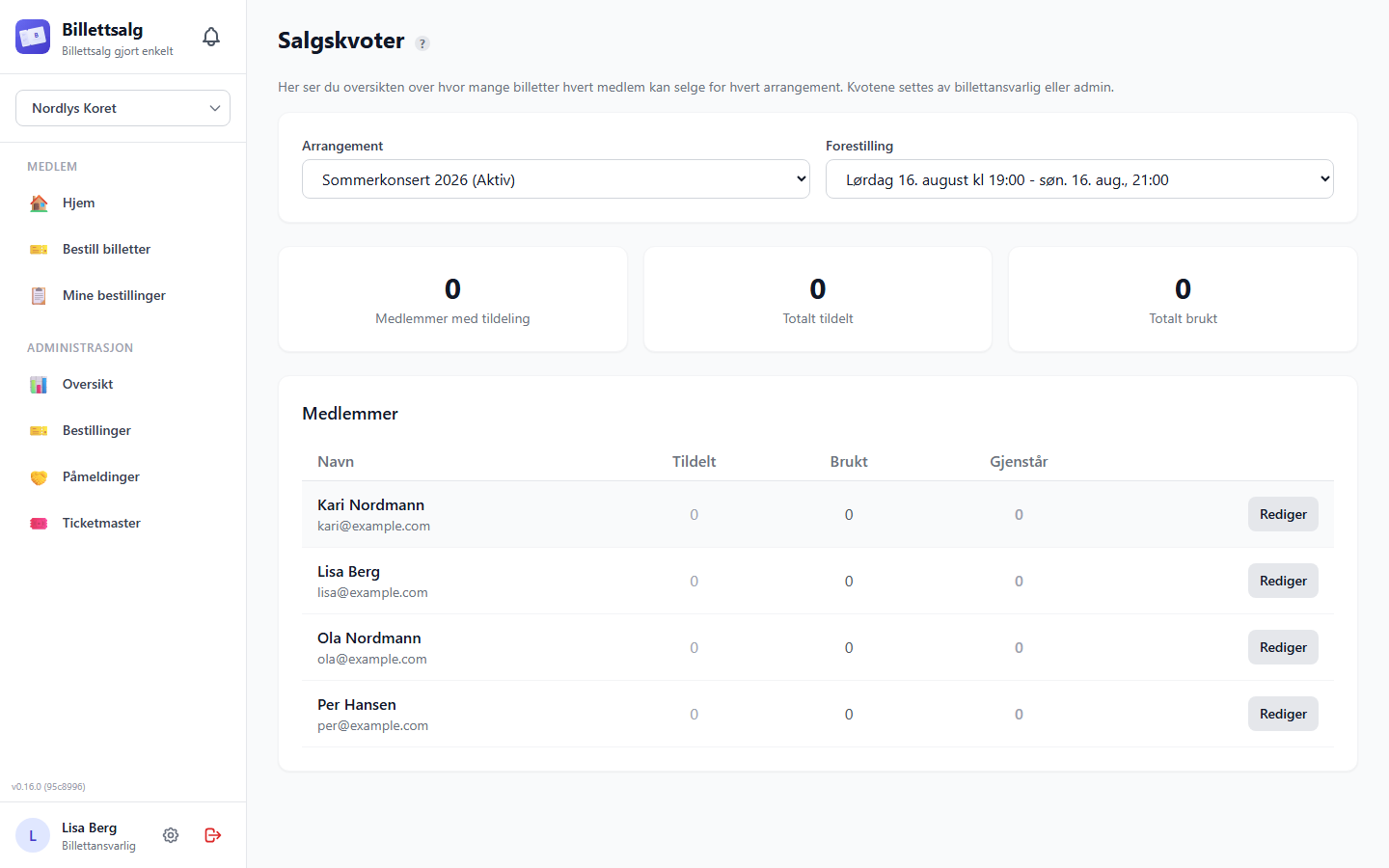
At the top:
- Showtime selector — filter by a specific showtime or view all.
Summary cards show:
- Members with allocation — how many members have tickets allocated
- Total allocated — sum of all allocated tickets
- Total used — how many allocated tickets have been ordered
Below is the members table with columns for each member's name, allocated count, used count, remaining count, and an edit button.
Creating and Editing Quotas
- Open the quotas screen from the event dashboard (see above).
- Select the showtime you want to manage.
- Find the member in the table and tap Edit (pencil icon).
- The edit sheet opens showing each ticket type with its price.
- Use the + / − buttons to set the quantity for each ticket type.
- Tap Save.
INFO
If the member has already ordered tickets, the sheet shows "Currently used: X tickets" so you know how many of their allocation is spoken for.
How Sales Quotas Relate to Orders
- Sales quotas set the maximum a member can order per ticket type.
- When a member orders tickets, the system checks their remaining quota.
- If they've used their full quota, the ticket type shows "Quota used up" on their order form.
- Sales quotas are per showtime — a member might have different limits for the Saturday vs. Sunday show.
- Quota limits are only enforced when the event has sales quotas enabled. If quotas are disabled on the event, members can order without limits.
Registration rounds → Sales Quotas
If your organization runs registration rounds (pledges), the admin can convert pledges into sales quotas automatically. This seeds each member's quota based on their pledge. You can also access Registrations directly from the sidebar under the Management section for quick pledge management.
External Sales (Ticketmaster)
What Are External Sales?
Not all tickets are sold by members. Some are sold through external platforms like Ticketmaster, box offices, or partner organisations. You track these separately so the capacity numbers stay accurate.
The Ticketmaster Screen
Navigate to Ticketmaster from the Management section in the sidebar.
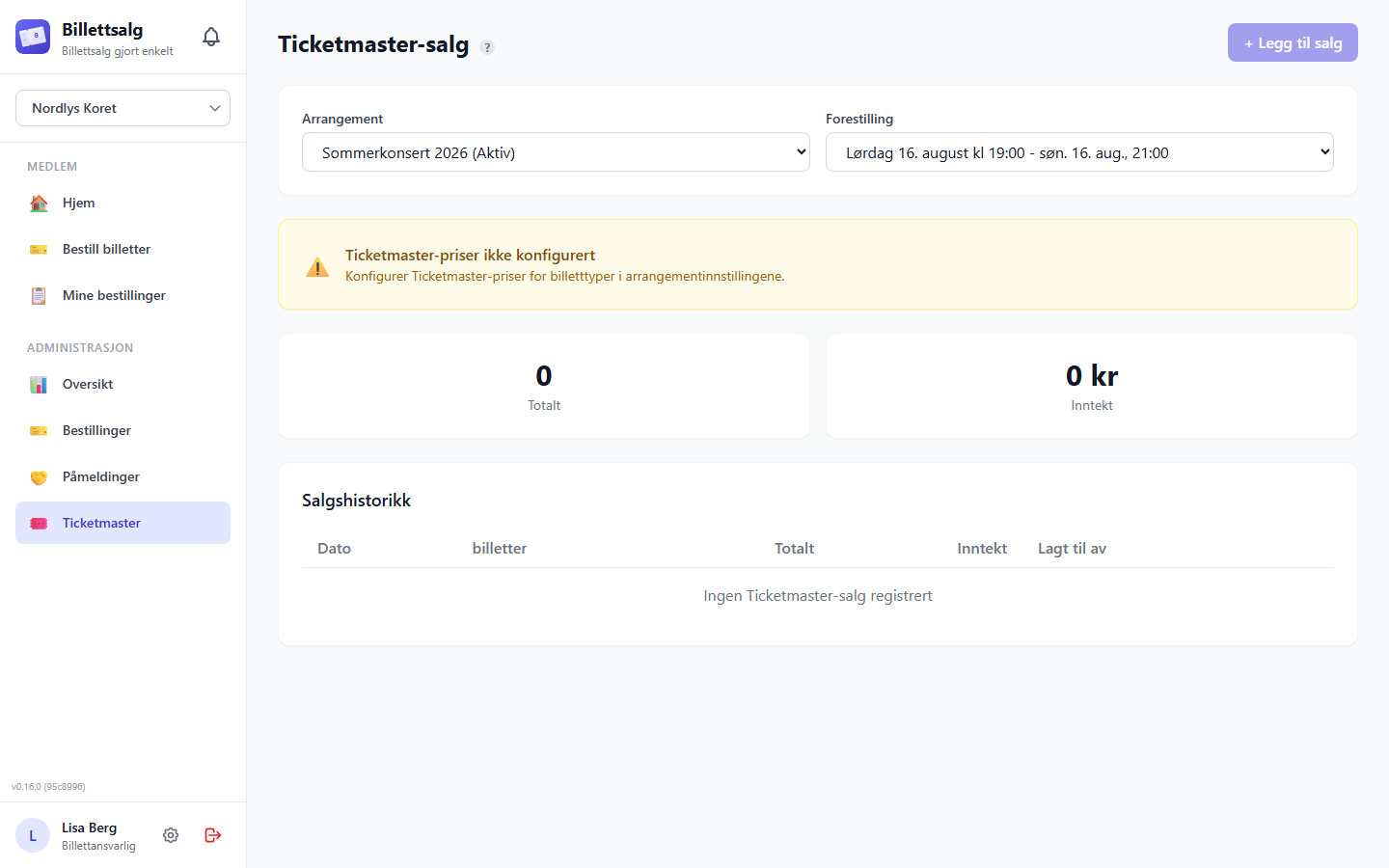
The screen shows:
- Event and showtime selectors at the top
- Ticketmaster pricing: expand this section to see the full category names, configured prices, and fees.
- Ticketmaster-only categories — reusable event-level labels that remain outside the public ticket catalog
- Totals: one compact card shows category counts, total tickets, ticket income, fees, and gross total for the selected showtime, or all showtimes when selected. It starts expanded and can be collapsed.
- Sales history: cards on phones and tablets, or a table on wide screens. Each record shows the complete ticket breakdown, total and capacity quantities, income, fees, gross total, original registrar, and permitted correction or removal actions without sideways scrolling.
While sales load, the screen shows a loading message instead of zero totals or an empty history. A failed load leaves a Try again action on the page. If an update succeeded but refreshing the list failed, a warning identifies the last loaded data as potentially outdated. Category settings can fail independently without hiding successfully loaded sales.
No pricing configured?
You can still record a reusable Ticketmaster-only category or a one-off label, including a zero-price/zero-fee companion certificate.
Use Add category to configure a reusable label, Ticketmaster price and fee, whether it counts toward capacity (on by default), and an optional mapping to a normal ticket type. Mapping is explicit context only: it never renames the external label, creates an allocation, or exposes the category to public ordering.
Use Delete on a reusable category when it should no longer be selectable. Confirming removes only the event configuration and immediately frees one of the 50 reusable-category slots. Existing sales keep their immutable label, revision, mapping, price/fee, and capacity snapshot. If another manager changes or deletes a category while your form is open, the sale is rejected before capacity is counted; the page reloads the latest categories and asks you to select again.
Logging an External Sale
- Select the event and showtime.
- Tap + Add Sale.
- The add-sale sheet offers the event's enabled Ticketmaster categories, ordered consistently with pricing and totals: regular Adult, regular Child, Early Bird variants, then other types. Equivalent Norwegian labels follow the same order.
- Already registered shows the current corrected count for this showtime. Removed sales no longer contribute. If category allocation or current sales cannot be confirmed, it shows Unavailable, not zero.
- Tickets to add starts at zero. Use + / − or type only the additional tickets, not the new total. Changing the event or showtime closes the draft.
- You'll see the unit price × quantity calculation.
- The fee is added to the ticket price. The total shows: price + fee.
- Optionally add a note (e.g. "Batch from March 15 sale").
- Review the preview showing total amount and quantity.
- Tap Add Sale.
Correcting an external sale
Completed sales cannot be edited or deleted. An organization Admin or authorized Super Admin can append an audited correction without changing the original sale.
- Find the entry in the sales history table and select Correct sale.
- Review the latest saved quantities and totals, then enter the corrected allocation and a reason.
- Review the differences before saving.
To reverse the entire external sale, set every category quantity to 0, including when the sale contains only companion tickets. The effective quantity, income, and fees become zero. Only capacity previously counted by the sale is released. The original sale and the audited correction remain in history, and you can make a later correction from zero if the sale is still eligible. Repeating an unchanged zero allocation does not create another correction.
Review the financial changes before confirming a paid-ticket reversal. This corrects the sales record only; it does not process a refund or payment. Existing permissions and invoice locks still apply.
Removing a sale and reviewing removed sales
Select Remove sale to reverse the entire sale without editing each category. Enter a required reason, select Review removal, review the before/after quantities, capacity and money, and explicitly confirm removal. Paid reversals also require financial confirmation. You can cancel before committing without saving anything. Saving an all-zero allocation through Correct sale uses the same confirmation.
Only a successfully verified zero-quantity, zero-money reversal leaves the active list. Zero-quantity category lines are hidden on active rows on both mobile and desktop. Free companion tickets with a nonzero quantity remain active. Uncertain or malformed evidence stays visible with its warnings. Summary totals use all effective sales, not the selected list.
Select Show removed sales to see original quantities and the original registrar. Load removal details shows the correction actor, time and reason separately from the original registration. Correction history remains restricted to authorized administrators; other readers see an explicit access restriction, not an unavailable financial total. No records are deleted. An authorized user can select Correct sale on a removed record and save a nonzero allocation to return it to the active list. Existing reversals appear here without migration.
The editor loads the latest correction history even if the sales list is older. If another administrator changes the sale while you are editing, select Create fresh preview to reload the current baseline, then re-enter and review your correction. Correct input returns a rejected request to the editable form without saving it. If the current baseline cannot be verified, saving stays blocked.
How External Sales Affect Capacity
External quantities are always reported. Their capacity contribution follows the explicit per-category/per-entry setting:
Capacity Used = Member-reported sold tickets + Direct registrations + Capacity-counted external sales + Free ticketsThe setting defaults on. Turn it off only for a category that genuinely does not occupy event capacity. History and Reports show each known category with its own quantity. The localized Ticketmaster CSV writes one row per category line. Corrections that only change an aggregate total are marked as having unavailable category allocation instead of showing stale quantities. Optional mapping appears as a separate Ticketmaster contribution under the normal ticket type; it does not add the sale again to event totals or capacity.
Capacity Overview
Understanding Capacity
Every event has a venue capacity (set by the admin) that applies separately to each showtime. For a multi-showtime event, the all-showtimes view adds the capacities and remaining seats from each performance. An oversold showtime never borrows unused seats from another showtime.
| Source | Counts toward capacity? | Counts toward revenue? |
|---|---|---|
| Member-reported sold tickets | ✅ Yes | ✅ Yes |
| Direct registrations | ✅ Yes | ✅ Yes |
| External sales (Ticketmaster) | Configurable per category/entry; default ✅ | ✅ Yes (external, including exact zero) |
| Free tickets (comps) | ✅ Yes | ❌ No |
| Pending, approved, or delivered but unsold order quantities | ❌ No | ❌ Not yet |
For standalone events with multiple showtimes:
- The capacity panel starts with an all-showtimes total and a per-showtime breakdown.
- Select a showtime to scope capacity, sales, revenue, and remaining seats to that performance.
- The sales tab lists member sales, external sales, total sold, remaining seats, and revenue per showtime, followed by a totals row.
- Event cards can expand to show sold, capacity, and remaining seats for each showtime.
Shared Event projections use authoritative shared capacity totals. The ticket-manager capacity summary and expandable event cards currently omit the per-showtime breakdown for Shared Events, so don't treat a local projection as a cross-organization per-showtime report.
For a Shared Event, the capacity cards separate three scopes:
- Global Shared Event capacity used includes committed and active reserved capacity across the event.
- This organization shows your organization's reported or issued usage.
- Other participants combined is the anonymous remainder.
The Sales view remains organization-local. The anonymous remainder never identifies another organization or exposes its members, customers, orders, revenue, fees, notes, or per-participant rows.
Capacity Indicators
When reviewing orders, the action sheet shows capacity status:
- "Capacity available" — plenty of room
- "Near capacity" — getting close to sold out
- "Capacity exceeded!" — more tickets sold than the venue holds
Keep capacity numbers accurate
Log external sales promptly so the capacity numbers are reliable when you're approving member orders. Approving orders that push past venue capacity can create headaches on show day.
Selling for Another Organization (Delegated Events)
An event admin at another organization can invite your organization to sell tickets on their behalf for one of their events. This is a scoped, delegated selling relationship — your organization's own members order the concert themselves through their normal Home and Bestill billetter screens, and your organization approves and delivers those self-service orders. Your organization never gets any of the owning organization's management controls.
Accepting an invitation
An admin at the owning organization sends your organization a one-time invitation link. Your organization's Admin can use that link, or open Pending invitations from Delegated Events, to accept or decline. Pending invitations are resolved server-side for organizations the Admin manages, store no token, and are unavailable while impersonating. Once accepted and the deployment rollout switches are enabled, the event appears in Delegated Events and in your members' regular concert catalog.
The Delegated Events List
Once your organization has an active delegation, open Delegated Events (🔗) from the sidebar — visible to ticket managers and above. It lists every event currently delegated to you:
- The event's name and date
- "Selling on behalf of {owner organization}", so it's always clear whose event you're selling for
- A "Sales locked" indicator if the owner has closed sales for the event
- A Sell button that opens the sell/report screen for that event
If the owner revokes your delegation, the event disappears from this list and any in-progress work on its sell screen becomes unavailable.
Using Overview, Orders, and Reports
Select a delegated event in the normal management workspaces:
- Overview — Ticket Manager+ sees lifecycle totals, sold, returned, outstanding, ticket-type and showtime breakdowns, and the gross revenue your organization collected from buyers.
- Orders — Ticket Manager+ uses the normal operational workspace for your organization's current-delegation orders. Buyer email, member notes, owner actors, invoice state, and another organization's orders are never included.
- Reports — Treasurer+ sees the same member-oriented report components, limited to current approved members of your organization. If current membership cannot prove a name, the row remains unattributed while quantities and money stay in the totals. CSV and Excel export are unavailable for delegated events in this release.
These views do not show owner-direct sales, other partners, external sales, venue capacity, remaining seats, owner invoice state, or organizer controls. Gross collected revenue is not compensation, net settlement, an invoiced amount, or payment status. Billettsalg does not yet compute those values.
Reviewing member self-service orders
Open an event from the list to reach its dedicated screen. The primary workflow here is the approval queue: your own members order tickets for this concert themselves, exactly like any other concert, and their orders land in this queue waiting on your organization's approval.
- Pending tab — self-service orders your members placed, waiting on your review. For each order you can:
- Approve — moves the order to Approved, awaiting pickup.
- Approve and deliver — approves and immediately marks the order delivered in one step, for when you're handing over tickets on the spot.
- Approved, awaiting pickup tab — orders you've approved. Mark delivered once the member has the physical tickets.
- Report sold / Report returned — for a delivered delegated order, record how many tickets were actually sold or returned, per ticket type, exactly like reporting on a regular order.
You only ever see and act on your own organization's members' orders for this event — never the owner's own orders or another partner's orders.
Alternative: creating an order manually
Most members now order their own tickets, which appear in the approval queue above. The sell screen still offers a manual create an order form for cases self-service doesn't cover — for example, a cash sale you're recording at rehearsal for a member without a device or account access. Pick a showtime, choose a buyer from your own organization's approved members, set quantities per ticket type, and submit. The order is delivered immediately with no approval step. The partner view does not disclose the owner's venue capacity or remaining seats. If authoritative capacity enforcement refuses the submission, nothing is created.
What You Can't Do
Your organization's access to a delegated event deliberately does not include:
- Cancelling an order that is already approved or delivered, refunding, or transferring tickets to or from any order
- Reconciling, settling, or invoicing
- Archiving orders
- Any event, pricing, ticket-type, or capacity configuration
Your organization can cancel one of your members' own orders only while it is still pending — the same escape hatch a member has for their own order, extended to your ticket managers so a mistaken order isn't stuck waiting on an approval that may never come. Everything above remains solely with the owning organization. If you need something outside approving, delivering, cancelling a pending order, and reporting sold/returned, contact the owner organization directly.
If your delegation is revoked
The owning organization can revoke your access at any time. Once revoked, you immediately lose the ability to approve, deliver, cancel, or report sold/returned on this event, and your members no longer see it in their own catalog — any orders you already delivered stay in the owner's records as-is. A revoked delegation is permanent; the owner would need to send a brand-new invitation to restore your access.
If the owner deactivates the event or locks its sales
Deactivating an event, or locking its sales, stops new orders only. A deactivated event disappears from your members' catalog and new orders for it are refused; a sales lock refuses new orders while the event stays visible. Neither one strands the orders you already hold: while your delegation is still active, you can continue to approve, mark delivered, cancel a pending order, and report sold/returned exactly as before. Revocation, and the owner deleting the event, are the stops that end your access outright.