Member Guide
Screenshots
Screenshots show demo data from a test environment.
Welcome! This guide walks you through everything you can do as a member in the Billettsalg app — from logging in to ordering tickets for your next concert.
Getting Started
What is Billettsalg?
Billettsalg is a web app your organization uses to manage concert ticket sales. As a member, you can browse upcoming events, order tickets, track your orders, and pledge tickets during registration rounds — all from your phone or computer.
Logging In
Billettsalg uses magic links instead of passwords. Here's how to sign in:
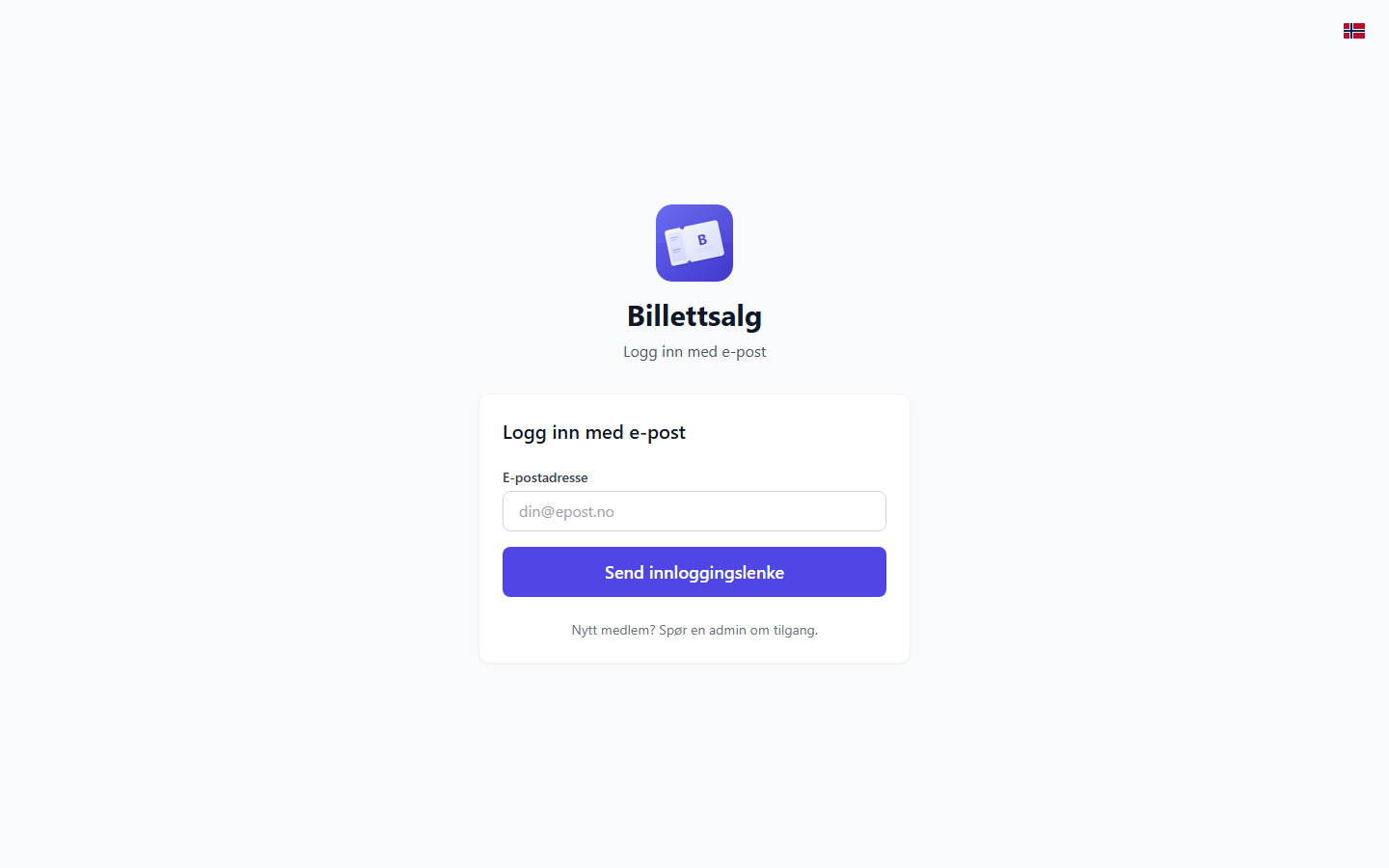
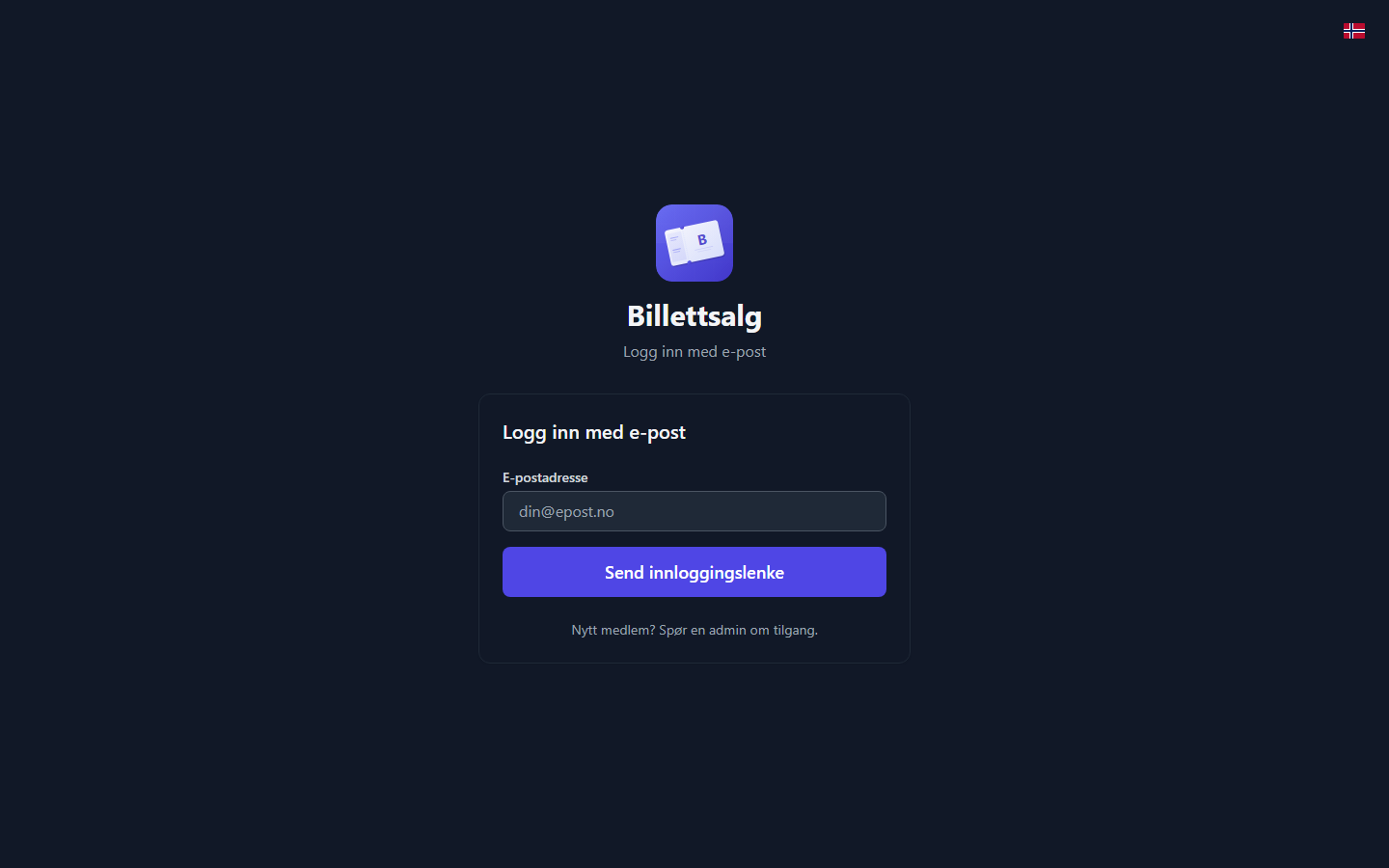
- Open the app and you'll see the Sign in with your email screen.
- Enter your email address and tap Send Magic Link.
- Check your inbox — you'll receive an email with two ways to sign in:
- Click the magic link in the email, or
- Enter the 6-digit code shown in the email back in the app and tap Verify Code.
- That's it — you're in!
TIP
Links and codes expire after 30 minutes and work once. If yours has expired, request one new email and use the newest link or code.
Didn't receive an email?
Check your spam folder. If it's still not there, make sure you're using the email address your organization admin registered you with.
📱 Installed app on iPhone/iPad?
If you've installed Billettsalg on your home screen, the magic link will open in Safari instead of your installed app. Use the 6-digit code from the email instead — type it directly into the app for a smooth login.
Selecting Your Organization
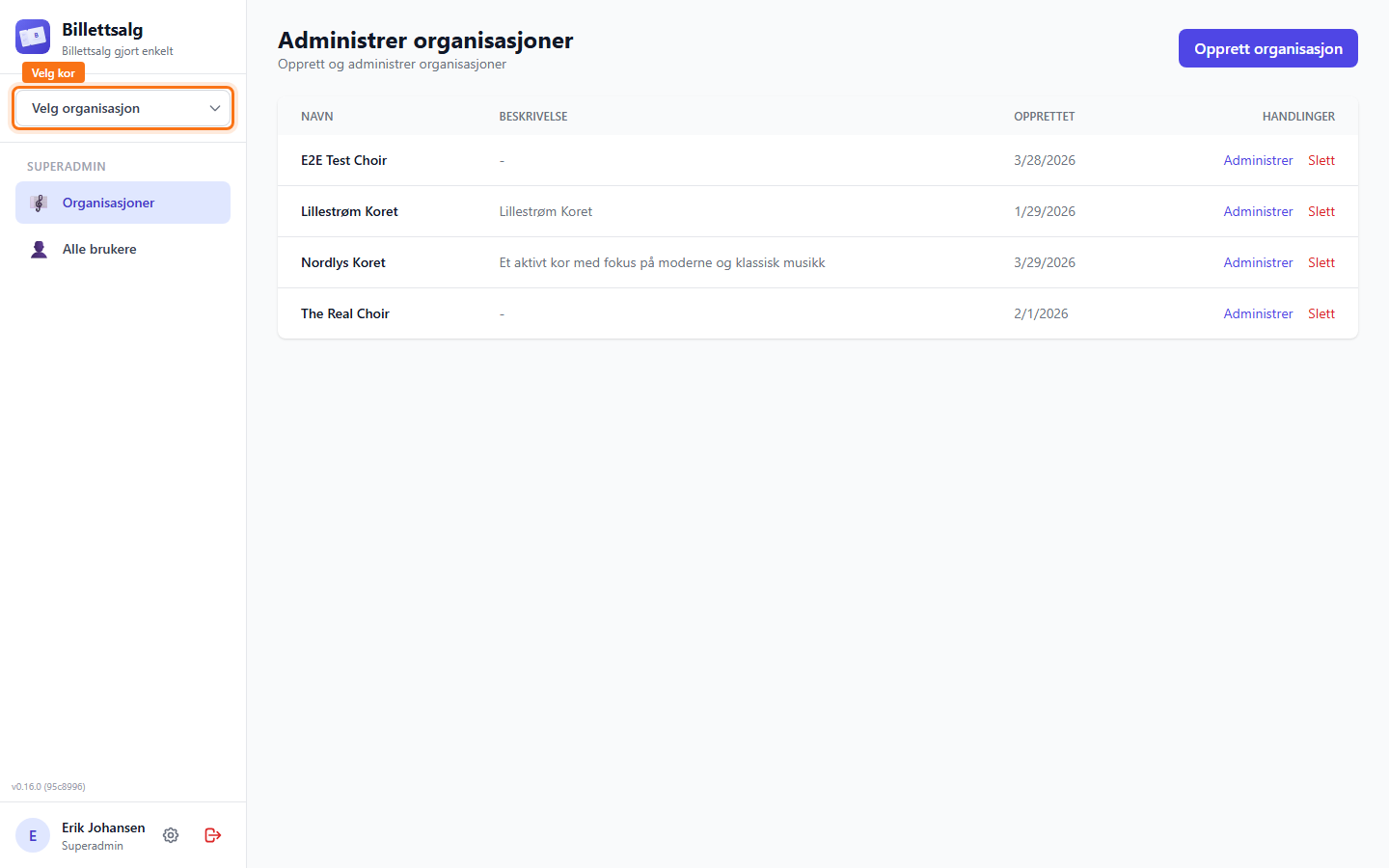
If you're a member of more than one organization, you'll be asked to select which organization you want to view after logging in. You can switch organizations at any time from the app menu.
Installing as a Phone App
Billettsalg works as a Progressive Web App, which means you can install it on your phone's home screen just like a regular app:
- iPhone (Safari): Tap the Share button → Add to Home Screen
- Android (Chrome): Tap the menu (⋮) → Add to Home Screen or accept the install prompt
Once installed, the app opens full-screen and works even with a spotty connection.
Automatic updates
When the app is updated, you'll see a "New version available" notification at the bottom of your screen. Just tap Update and the app refreshes with the latest changes.
Browsing Events
The Home Screen
After logging in, the Home screen is the first thing you see. It greets you by name and shows:
- Shortcuts to report sales, order tickets and open My Orders.
- Your cart shortcut and any open registration-round reminder.
Your personal orders, delivery status and ticket stock remain under My Orders. They are not the performance totals.
Ticket figures when ordering
Open Order Tickets to see sold and available tickets on each performance card, beneath its date, time and venue. There is no separate performance selector or totals panel on Home. Each card describes only that performance. Tap the performance's name and details to choose it.
The same compact row follows your selected performance when you choose ticket quantities and review the order. In the cart, each concert and showtime has its own row above the ticket quantities. These are performance or organization figures, not the number of tickets you are ordering or have purchased. Changing a quantity in your cart does not reserve capacity or change these figures.
Members of the concert-owning organization see Sold tickets and Available for the whole performance. The sold-ticket total includes reported member sales, registrations and external sales. Free tickets are not counted as sales, but still use capacity. Approving an order or handing out its tickets does not by itself count as a reported sale. These figures do not show payments or settled invoices.
Available means remaining venue capacity after tickets that use capacity and current holds. It is not necessarily capacity minus sold tickets: free tickets use capacity, while some external tickets do not. Ticketmaster category breakdowns are not counted again. Unused partner allocations are not sold and do not reduce this whole-venue figure; they can still limit what your organization may sell.
Sales partners see Sold from allocation and Remaining allocation for their own organization, not the owner's totals or other partners. An unset allocation is not unlimited capacity.
Shared Event organizers see whole-performance totals. Other active participants see Your organization's sales. When everyone sells from a common pool, Available in shared pool shows the remaining capacity shared by all participants, not a private allocation. In quota mode, participants see their own remaining quota instead. The overview does not show other participants' sales or a participant breakdown.
| State | Meaning |
|---|---|
| 0 | The confirmed remaining quantity is zero for the scope named on the card. |
| No capacity limit | The normal event explicitly has no venue capacity limit. |
| Allocation not set | No finite partner allocation is configured. |
| Unavailable | The quantity cannot be verified. It does not mean zero. |
| Sales locked | Sales are locked even if some capacity remains. Shared Events outside the member catalog remain hidden. |
Figures load when you open the performance list and stay unchanged while you move between ordering steps. A direct link loads figures for the selected performance only. The cart loads a fresh snapshot for each performance in your current organization's cart. Reopen the ordering page to obtain a new snapshot. If figures cannot be verified, the card shows an error instead of zero. Try again retries only that card and does not select it. These figures neither reserve tickets nor guarantee that a later sale will be accepted. Events marked as test data are not included in these figures.
Only genuinely unsold tickets can be returned. Sold tickets stay sold, consume capacity and remain invoiceable to the member who sold them. This overview adds no refunds, sale reversal or pre-handout sales workflow.
TIP
If you see a purple banner at the top about a registration round, that means your organization is running a pre-sales pledge. See the Registration Rounds section below.
Concerts sold by a partner organization
Sometimes another organization runs a concert and your own organization has been invited to sell tickets for it. If your organization admin has enabled this, that concert appears alongside your organization's own concerts under Order Tickets. You order it exactly the same way as any other concert.
A small badge on the concert and on your order names the organization the concert belongs to, so you always know whose event it is. Ordering, cart, My Orders, cancelling a pending order, and reporting sold/returned tickets all work the same as for your own organization's concerts.
The one difference is who reviews your order: your own organization's ticket manager approves and delivers it, not the other organization. The other organization keeps the concert's reconciliation, invoicing, and settlement.
Your organization's sales allowance: A delegated concert can have a separate reservation for each showtime. Ordering and sales-reporting views show your organization's allowance, reported sales and remaining allowance when the service can confirm them. The compact ordering and cart rows use member-authorized performance figures, scoped to your organization's allocation for partner concerts. Older order-reporting dialogs use a member-authorized, quota-only reader, not staff sales context or inventory estimates. The member sales-reporting page receives the summary in its authorized reporting scope. Earlier sales by your organization can already be included. No reservation means shared availability, not unlimited tickets. An unavailable summary does not mean zero, and configuration remains unavailable until safe activation is verified.
Only reported sales consume this allowance. You can still order tickets when the allowance is exhausted, and your ticket manager can still approve and deliver them. A rejected sales report keeps your quantities so you can review the refreshed allowance. Returning unsold tickets does not reverse earlier sales. Authorized venue overrides and external sales can reduce actual venue availability even when your organization has allowance left.
If ordering isn't available yet
If your organization admin hasn't turned on ordering for these concerts yet, you may see the concert but not be able to submit an order for it, or the concert may not appear at all. If you add it to your cart and submission fails with a message that ordering is temporarily unavailable, your ticket selection stays in the cart — nothing is lost, and you can try again later.
Ordering Tickets
Reporting approved sales before pickup
When this feature is enabled by the service, Report sales can include your own approved tickets before physical pickup. Pending orders are not eligible. Select the event and performance, enter the exact quantity of each ticket type sold, and review before confirming. You cannot exceed the remaining approved quantity or sell after the sales window closes.
A confirmed sales report is final and cannot be reversed. Sold tickets are not refundable. You remain responsible for the reported sales and will be invoiced using the prices and fees saved with the order. Reporting does not record payment or physical handout.
On Report sales, the summary for the selected event and performance distinguishes Sold - not handed out from Sold - handed out. My Orders keeps the details for each order. Your ticket manager records physical handout separately and hands out the entire remaining order at once. After sales close, handout is available only when every remaining ticket has been reported sold.
If saving cannot be confirmed, retry the same submission or check My Orders before creating another report. If the inventory changed, refresh and review new quantities. Unavailable handout information is not zero. Existing obligations remain visible if new pre-pickup reporting is switched off.
Step by Step
- From the Home screen, tap Order Tickets (or use the navigation menu).
- Select a performance: each card shows the concert, optional performance name, date, time, venue and compact ticket figures. Nothing is preselected when you enter from navigation.
- Check the showtime: the card already identifies it. An event-only link may still ask you to choose a showtime.
- Choose ticket types and quantities — you'll see cards for each ticket type (e.g. Adult, Child, Student) with the price listed. Use the + and − buttons to set how many of each type you want.
- Add a note (optional) — use the note field if you need to tell the ticket manager anything about your order.
- Continue to review: after you select at least one ticket, tap Continue to review and add to cart. The page moves to the order summary and places keyboard focus on it.
- Review and add: confirm the event, showtime, quantities, note, and total, then tap Add to Cart.
- Choose what to do next: the page keeps a visible Added to cart! confirmation with the event, showtime, quantity, and amount. Tap Go to cart or Add more tickets.
- Review your cart: open the cart to see all items across all events, with ticket counts and totals for each.
- Tap Submit All Orders.
Multi-event cart 🛒
You can add tickets from multiple events to your cart before submitting. Each event becomes a separate order, but they are all submitted together in one go — no need to repeat the process for each event.
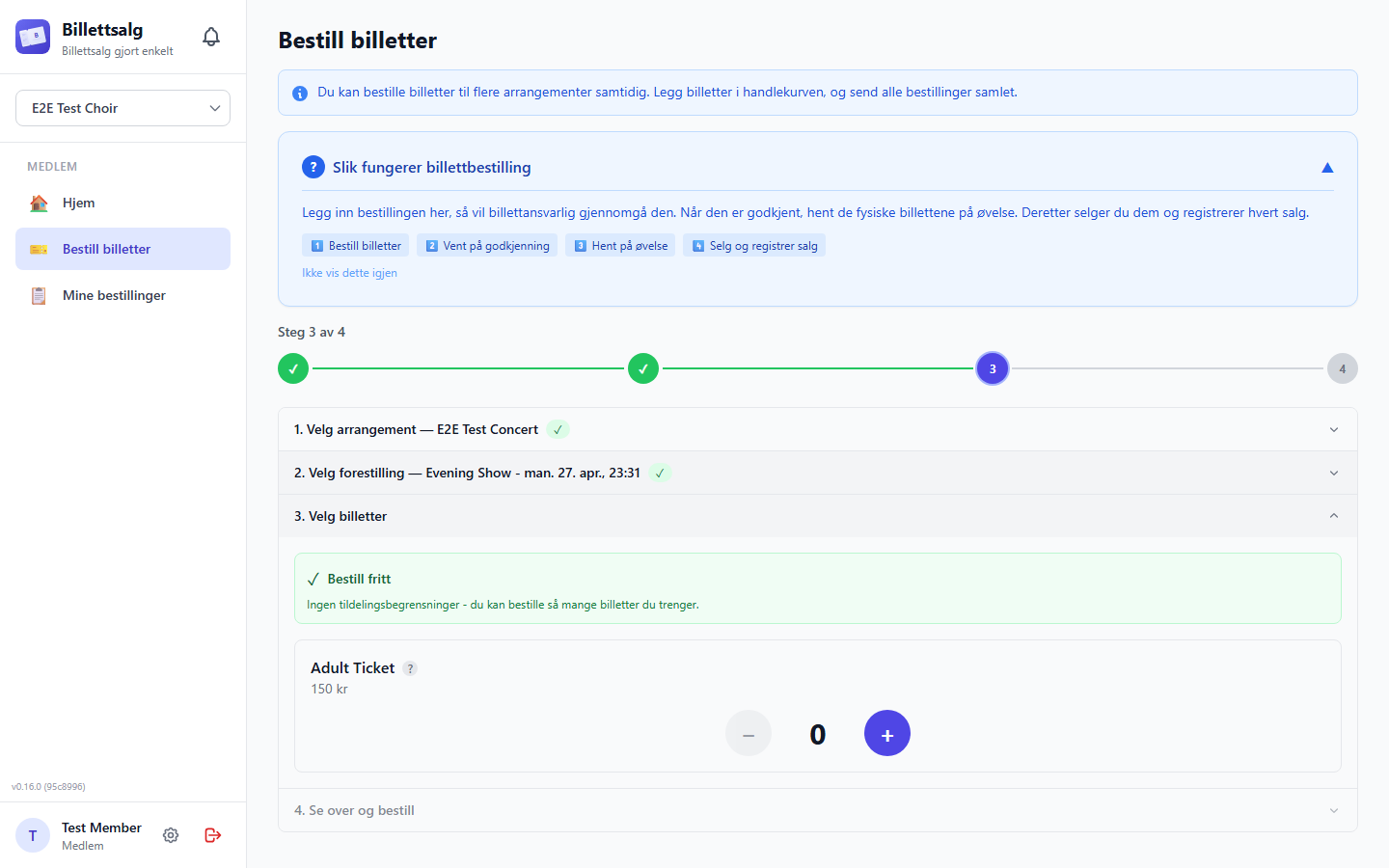
First time ordering?
A help banner at the top explains the 4-step process: Order → Approval → Pickup → Sell. You can collapse or dismiss it once you're familiar with the flow.
Sales Quotas
Your organization may set up sales quotas — this is your allocation of how many tickets you are allowed to sell for this event. If you have a sales quota:
- Each ticket type card shows your remaining quota in green.
- If your quota is used up, you'll see an amber banner saying "Quota used up".
- If you have no quota set, you'll see a green banner saying "Order freely" — there's no limit.
The Cart
What the Cart Does
When you tap Add to Cart, your ticket selection is saved to the cart — a holding area before you commit. From the cart you can:
- Adjust quantities per ticket type — each ticket type has its own +/− controls so you can fine-tune your order without going back to the order form.
- Remove an event entirely — tap 🗑️ on any event card to remove it from the cart.
- Edit your note — the note field is editable right in the cart.
- See subtotals and a grand total — the cart shows the cost per event and a combined total across all events.
- Add more events — tap Continue Shopping → to go back to the order form and add more events.
Your cart is saved
The cart persists across browser refreshes and tab-closes. If you accidentally close the tab, your items will still be there when you come back.
The confirmation on the ticket-selection page stays visible until you choose Go to cart or Add more tickets. It replaces the selection steps temporarily, so you can tell that the cart changed without relying on a short-lived notification.
Accessing the Cart
- A 🛒 cart badge appears in the sidebar (and in the top bar on mobile) showing the number of events in your cart. Tap it to open the cart directly.
- From the Order Tickets page, a banner at the top shows how many items are in your cart and opens the cart directly.
Submitting
When you're ready, tap Submit All Orders 🎫. Each event in the cart becomes a separate order. If one event fails (e.g. sales are locked), the others still go through — you'll see a partial-failure message explaining which event failed and why. If a concert from another organization fails because ordering for it is temporarily unavailable, that item stays in your cart so you can try again later; every other event in the cart still submits normally.
After a successful submission you're taken straight to My Orders so you can see your new orders.
What Happens After You Order
Your order goes through these stages:
| Status | What it means |
|---|---|
| ⏳ Pending | Your order has been submitted and is waiting for a ticket manager to review it |
| ✅ Approved | Your order is approved and ready for ticket pickup |
| 📦 Delivered | You have received the physical tickets and can report sales or returns |
| 📋 Awaiting reconciliation | Every ticket is reported as sold or returned, and a manager must review the totals |
| ✔️ Settled | A manager approved the reconciliation and froze the invoice basis |
| ❌ Cancelled | You or a manager cancelled the order |
WARNING
Pending, approved, and delivered but unsold quantities do not count toward venue capacity. Capacity changes when sold tickets are reported.
Existing Orders
Below the order form, you can see all your orders for the selected event with their current status. If you have pending orders, a yellow banner reminds you how many are awaiting review.
Your orders
Tap My Orders in the sidebar (under the Member section) to open two top-level views:
- My Orders contains activity for current events. Sales-locked and hidden events remain current.
- Event History contains your scoped activity for cancelled, archived, or deleted events.
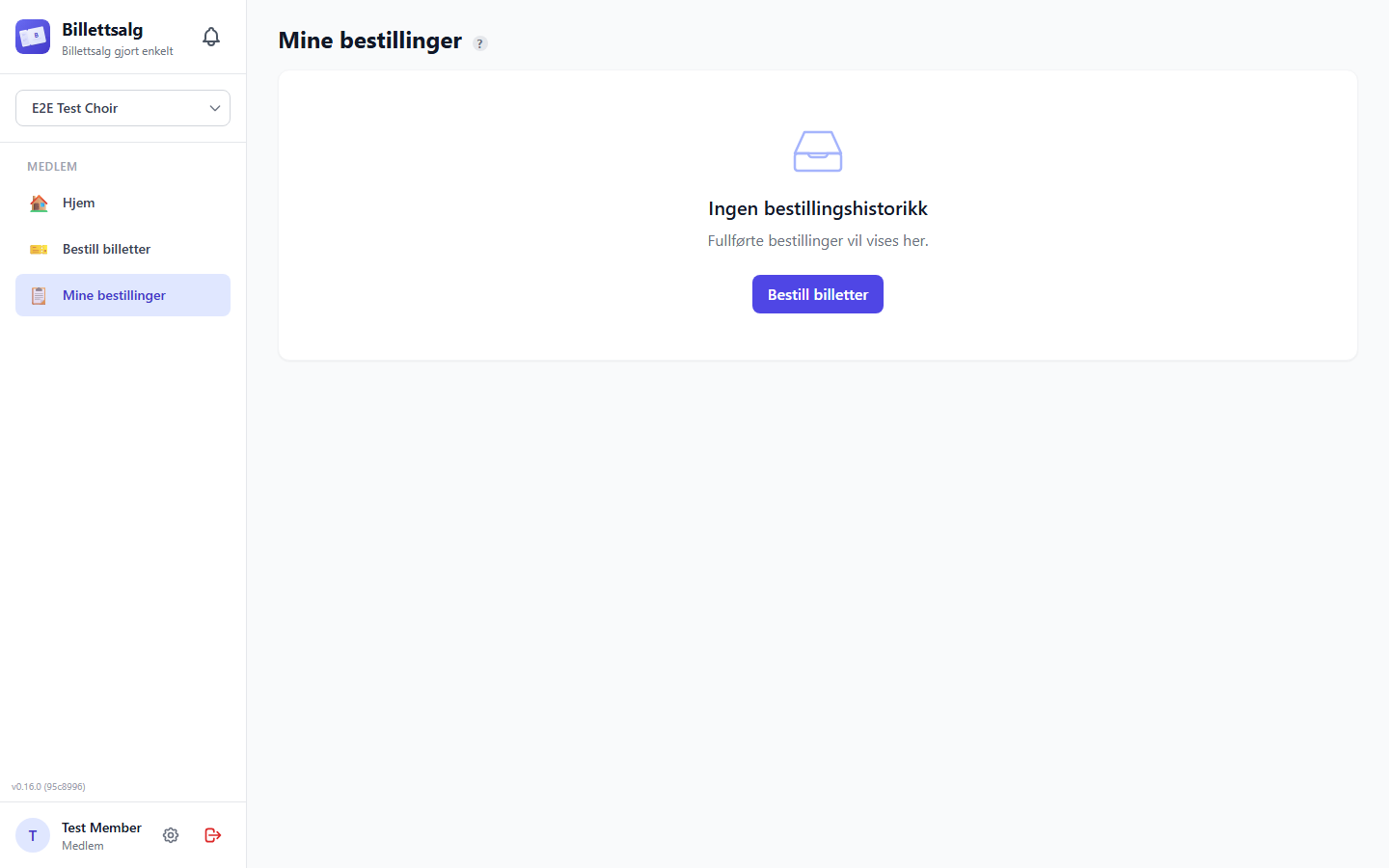
How it is organized
Inside My Orders, two visible tabs replace the old status selector:
- Current orders: Every non-cancelled order for a current event, including pending, approved, delivered, awaiting-reconciliation, and settled orders.
- Cancelled: Cancelled orders only when the event itself is still current.
Each card keeps its detailed workflow badge and timeline, so you can still see whether an order awaits approval, is ready for pickup, needs reporting, awaits reconciliation, or has been settled. Orders never appear in both My Orders and Event History.
Each order card shows:
- When it was placed
- Status badge (colour-coded)
- 🎭 Showtime details
- Ticket breakdown (e.g. "2 × Adult @ 250 kr")
- Your note (if you added one)
- Total amount
Order statuses explained
Each tab shows a help banner explaining the statuses relevant to that tab:
- ⏳ Pending — Waiting for review. You can still cancel this order.
- ✅ Approved — Ready for pickup at rehearsal.
- 📦 Delivered: You have the physical tickets. Report sold tickets and return any unsold tickets.
- 📋 Awaiting reconciliation: Sold plus returned equals the order quantity. You now wait for a Ticket Manager, Treasurer, Admin, or Super Admin to approve the reconciliation.
- ✔️ Settled: Reconciliation is approved, and the sold-only invoice basis is frozen at order-time prices. A partial sale needs complete per-ticket-type detail; the original order total is never a fallback. Approval does not issue an invoice.
- ❌ Cancelled — This order was cancelled and won't be fulfilled.
Reporting sales and returns
For a delivered order with tickets still outstanding:
- Open the Delivered tab.
- Select Report sold to enter the additional sold quantity for each ticket type. The app sends the updated cumulative sold total and checks available venue capacity.
- After the relevant showtime or event has passed, select Return tickets to enter unsold tickets you handed back.
- Check the sold, returned, and outstanding totals on the order card.
You can report only your own sales and returns. If a capacity check rejects a sale, report a smaller quantity or contact your ticket manager or admin. A Ticket Manager, Treasurer, Admin, or Super Admin can record a return on your behalf. Only an Admin or Super Admin can report sales on behalf of another member.
When the outstanding total reaches zero, the order changes to Awaiting reconciliation and stays in the Delivered tab. You do not need to submit anything else. Wait for a Ticket Manager, Treasurer, Admin, or Super Admin to review the sold and returned totals. After approval, the order moves to Settled.
Cancelling an Order
You can cancel any pending order:
- Find the order in My Orders.
- Tap the red Cancel link on the order card.
- Confirm when prompted — "Are you sure?"
- The order status changes to Cancelled.
WARNING
You can only cancel orders that are still Pending. Once an order is approved or delivered, contact your ticket manager if you need changes.
This works the same way for a concert sold by a partner organization: your own organization's ticket manager still handles approval, delivery, and any changes needed on an order that is no longer pending.
Opening orders from notifications
New order-status notifications check the event lifecycle before choosing a destination. A notification for a current event opens the matching order in My Orders; a notification for a cancelled, archived, or deleted event opens that event in Event History when you still have access.
Notifications already stored with the retired /my-orders address are not rewritten. An older notification can therefore still open Page not found. Open My Orders or Event History from the navigation instead.
Registration Rounds
What Is a Registration Round?
Before tickets go on sale, your organization may run a registration round — a chance for all members to indicate how many tickets they think they can sell. This helps the organization plan how many tickets to order and how to distribute them fairly.
How to Pledge
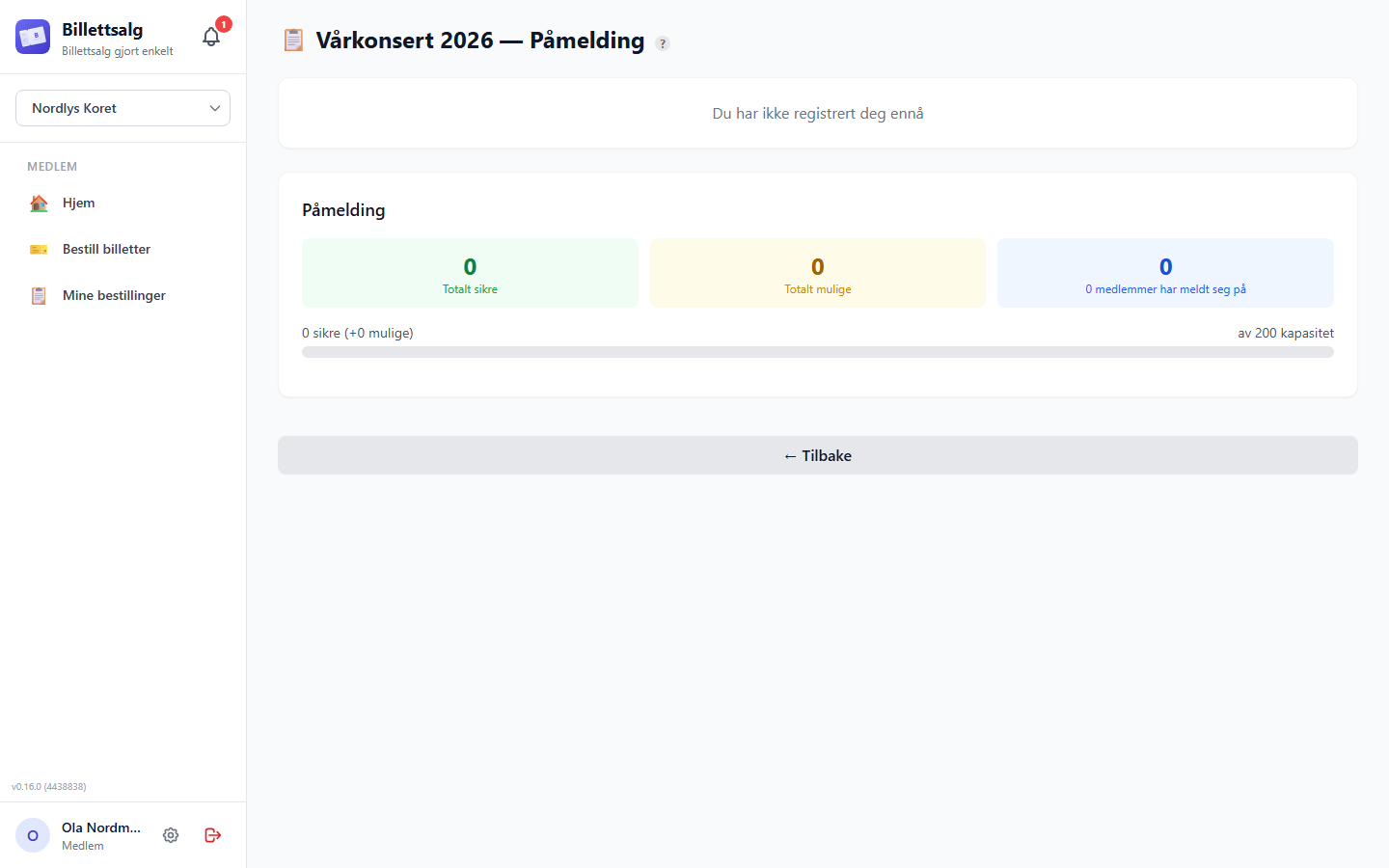
When a registration round is open, you'll see a purple banner on the Home screen with a deadline. Tap it (or navigate to the pledge page) to submit your pledge:
- Tickets I'm sure about — enter the number of tickets you're confident you can sell.
- Additional tickets I might sell — enter extra tickets you think you could possibly sell.
- Tap Submit.
TIP
You can update your pledge as many times as you like before the deadline — don't worry about getting it perfect the first time. The form will show your existing pledge numbers so you can adjust.
The Aggregate Summary
Below the form, you'll see a summary showing the organization's total pledges:
- Total "sure" tickets pledged (green)
- Total "possible" tickets (yellow)
- Members who pledged (blue)
- A progress bar showing "sure" pledges against venue capacity
What Happens When the Round Closes
After the deadline passes (or when an admin closes the round):
- The pledge form locks — you can still see your pledge but can't change it.
- The admin may convert pledges into sales quotas, which sets your personal ticket ordering limits for the event.
INFO
Don't worry if you're unsure about your numbers — the registration round is about helping the organization plan, not locking you into a commitment. Your admin can always adjust quotas later.
Tips & Settings
Here are a few things that make the app easier to use day-to-day.
Dark / Light Mode
The app supports both dark and light themes and follows your device's system preference by default. You can also switch manually from the top navigation bar — choose Light, Dark, or System.
Language
Billettsalg is available in English and Norwegian (Norsk). Switch the language from the login screen or the navigation bar at any time — all labels, buttons, and messages update instantly.
Offline Access
If you installed the app on your home screen (see Installing as a Phone App), it loads quickly and can show cached data even when your connection is spotty. For the best experience, open the app while connected at least once after any updates.
App updates
When a new version is available, you'll see a toast at the bottom of your screen saying "New version available". Tap Update to get the latest version — the page will reload automatically.
On iPhone, if the Update button doesn't seem to respond straight away, don't worry — the app will force a reload after a moment to make sure you get the new version.
Need Help?
- Can't log in? Check that you're using the email your organization admin registered you with, and look in your spam folder for the magic link.
- Order stuck on Pending? Your ticket manager hasn't reviewed it yet — give them a nudge!
- Something else not working? Contact your organization admin or check the FAQ for common questions.